当前位置:网站首页>WPF 实现用户头像选择器
WPF 实现用户头像选择器
2022-07-25 17:32:00 【yanjinhua】
制作一个用户头像选择器仿 WeGame
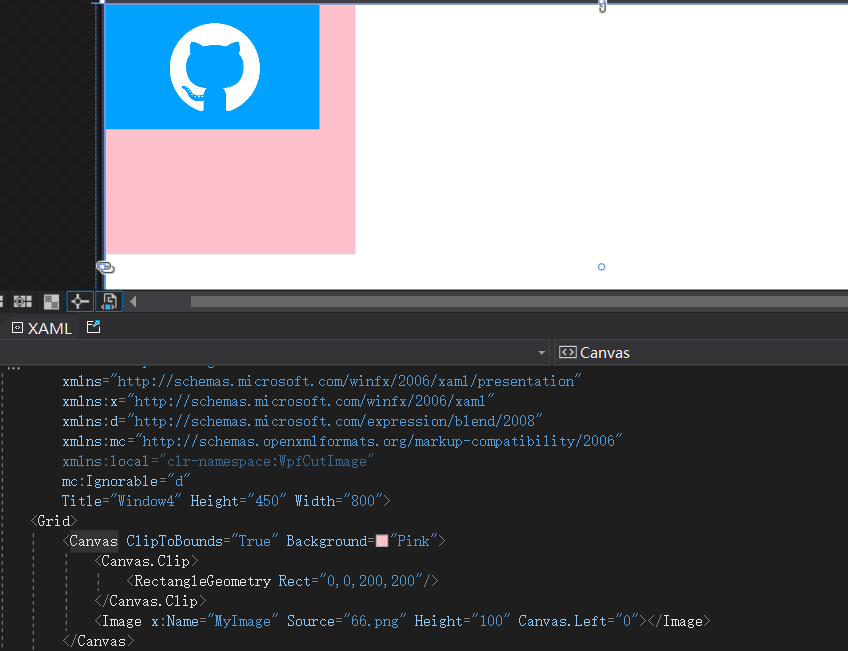
制作一个用户头像选择 Canvas为父控件所实现,展示图片使用Image,Path当作上方的蒙版;Canvas:主要用途方便移动Image,设置ClipToBounds="True"裁剪为一个正方形200x200做为主要展示区域;Image:展示需要裁剪的图片;
Path: CombinedGeometry[1]绘制蒙版大小200x200效果如下;

当选择一个本地图片的时候判断宽与高谁更大,谁小就将它更改为 200,另一边做等比缩放后给到DrawingVisual绘制一个新的 BitmapFrame[2]给Image控件做展示;当移动图片的时候右侧展示当前区域使用 CroppedBitmap[3]进行裁剪并显示; 源码 Github[4]Gitee[5]
 1)
1)CropAvatar.xaml 代码如下;
<ResourceDictionary xmlns="http://schemas.microsoft.com/winfx/2006/xaml/presentation"
                    xmlns:x="http://schemas.microsoft.com/winfx/2006/xaml"
                    xmlns:controls="clr-namespace:WPFDevelopers.Controls">
    <ResourceDictionary.MergedDictionaries>
        <ResourceDictionary Source="Basic/ControlBasic.xaml"/>
    </ResourceDictionary.MergedDictionaries>

    <Style TargetType="controls:CropAvatar" BasedOn="{StaticResource ControlBasicStyle}">
        <Setter Property="Template">
            <Setter.Value>
                <ControlTemplate TargetType="{x:Type controls:CropAvatar}">
                    <Canvas x:Name="PART_Canvas" ClipToBounds="True">
                        <Image x:Name="PART_Image" Cursor="SizeAll" ></Image>
                        <Path x:Name="PART_Layout"
                              Fill="{DynamicResource BlackSolidColorBrush}"
                              Width="200" Height="200"
                              Opacity=".5">
                            <Path.Data>
                                <CombinedGeometry GeometryCombineMode="Xor">
                                    <CombinedGeometry.Geometry1>
                                        <RectangleGeometry Rect="0,0,200,200"/>
                                    </CombinedGeometry.Geometry1>
                                    <CombinedGeometry.Geometry2>
                                        <EllipseGeometry Center="100,100" RadiusX="100" RadiusY="100"/>
                                    </CombinedGeometry.Geometry2>
                                </CombinedGeometry>
                            </Path.Data>
                        </Path>
                        <Grid x:Name="PART_Grid" Width="200" Height="200">
                            <Button x:Name="PART_ReplaceButton" Style="{StaticResource PathButton}"
                                    HorizontalAlignment="Right"
                                    VerticalAlignment="Top"
                                    Width="40" Height="40" ToolTip="更换图片"
                                    Visibility="Collapsed">
                                <Button.Content>
                                    <Path Data="{StaticResource PathReplace}"
                                          Fill="{StaticResource PrimaryNormalSolidColorBrush}"
                                          Height="15"
                                          Width="15"
                                          Stretch="Fill" />
                                </Button.Content>
                            </Button>
                            <Button x:Name="PART_AddButton" Style="{StaticResource PathButton}"
                                    Width="40" Height="40" ToolTip="选择图片">
                                <Button.Content>
                                    <Path Data="{StaticResource PathAdd}"
                                          Fill="{StaticResource PrimaryNormalSolidColorBrush}"
                                          Height="20"
                                          Width="20"
                                          Stretch="Fill"
                                          RenderTransformOrigin="0.5,0.5" IsHitTestVisible="False">
                                        <Path.RenderTransform>
                                            <RotateTransform Angle="45"/>
                                        </Path.RenderTransform>
                                    </Path>
                                </Button.Content>
                            </Button>
                        </Grid>
                    </Canvas>
                </ControlTemplate>
            </Setter.Value>
        </Setter>
    </Style>

</ResourceDictionary>
2)CropAvatar.cs 代码如下;
using System;
using System.Windows;
using System.Windows.Controls;
using System.Windows.Input;
using System.Windows.Media;
using System.Windows.Media.Imaging;
using System.Windows.Shapes;
using WPFDevelopers.Helpers;

namespace WPFDevelopers.Controls
{
    [TemplatePart(Name = CanvasTemplateName, Type = typeof(Canvas))]
    [TemplatePart(Name = ImageTemplateName, Type = typeof(Image))]
    [TemplatePart(Name = PathTemplateName, Type = typeof(Path))]
    [TemplatePart(Name = GridTemplateName, Type = typeof(Grid))]
    [TemplatePart(Name = ReplaceButtonTemplateName, Type = typeof(Button))]
    [TemplatePart(Name = AddButtonTemplateName, Type = typeof(Button))]
    public partial class CropAvatar : Control
    {
        private const string CanvasTemplateName = "PART_Canvas";
        private const string ImageTemplateName = "PART_Image";
        private const string PathTemplateName = "PART_Layout";
        private const string GridTemplateName = "PART_Grid";
        private const string ReplaceButtonTemplateName = "PART_ReplaceButton";
        private const string AddButtonTemplateName = "PART_AddButton";
        private Point point;
        private const int _size = 200;
        private bool isDown;
        private bool isLeft;
        private CroppedBitmap crop;
        private Canvas canvas;
        private Image image;
        private Path path;
        private Grid grid;
        private Button replaceButton, addButton;
        private int initialX, initialY, voffsetX, voffsetY;
        private double vNewStartX, vNewStartY, _StartX, _StartY, centerX, centerY;
        private BitmapFrame bitmapFrame;

        public ImageSource OutImageSource
        {
            get { return (ImageSource)GetValue(OutImageSourceProperty); }
            set { SetValue(OutImageSourceProperty, value); }
        }

        public static readonly DependencyProperty OutImageSourceProperty =
            DependencyProperty.Register("OutImageSource", typeof(ImageSource), typeof(CropAvatar), new PropertyMetadata(null));


        static CropAvatar()
        {
            DefaultStyleKeyProperty.OverrideMetadata(typeof(CropAvatar), new FrameworkPropertyMetadata(typeof(CropAvatar)));
        }
        public override void OnApplyTemplate()
        {
            base.OnApplyTemplate();
            canvas = GetTemplateChild(CanvasTemplateName) as Canvas;
            canvas.Loaded += Canvas_Loaded;
            grid = GetTemplateChild(GridTemplateName) as Grid;
            image = GetTemplateChild(ImageTemplateName) as Image;
            image.MouseDown += Image_MouseDown;
            image.MouseMove += Image_MouseMove;
            image.MouseUp += Image_MouseUp;
            image.MouseLeave += Image_MouseLeave;
            path = GetTemplateChild(PathTemplateName) as Path;
            replaceButton = GetTemplateChild(ReplaceButtonTemplateName) as Button;
            replaceButton.Click += ReplaceButton_Click;
            addButton = GetTemplateChild(AddButtonTemplateName) as Button;
            addButton.Click += AddButton_Click;
        }

        private void Canvas_Loaded(object sender, RoutedEventArgs e)
        {
            if (sender is Canvas canvas)
            {
                var width = canvas.ActualWidth;
                var height = canvas.ActualHeight;
                centerX = (width - path.Width) / 2.0d;
                centerY = (height - path.Height) / 2.0d;
                canvas.Clip = new RectangleGeometry(new Rect(centerX, centerY, 200, 200));
                Canvas.SetLeft(path, centerX);
                Canvas.SetTop(path, centerY);
                Canvas.SetLeft(grid, centerX);
                Canvas.SetTop(grid, centerY);
            }
        }

        private void Image_MouseLeave(object sender, MouseEventArgs e)
        {
            isDown = false;
            if (isLeft)
                _StartX = Canvas.GetLeft(image);
            else
                _StartY = Canvas.GetTop(image);
        }

        private void Image_MouseUp(object sender, MouseButtonEventArgs e)
        {
            if (isDown)
            {
                var vPoint = e.GetPosition(this);
                if (isLeft)
                {
                    _StartX = Canvas.GetLeft(image);
                    initialX = voffsetX;
                }

                else
                {
                    _StartY = Canvas.GetTop(image);
                    initialY = voffsetY;
                }
            }
        }

        private void Image_MouseMove(object sender, MouseEventArgs e)
        {
            if (e.LeftButton == MouseButtonState.Pressed && isDown)
            {
                var vPoint = e.GetPosition(this);
                if (isLeft)
                {
                    var voffset = vPoint.X - point.X;
                    vNewStartX = _StartX + voffset;
                    var xPath = Canvas.GetLeft(path);
                    if (vNewStartX <= xPath && vNewStartX >= -(bitmapFrame.Width - 200 - xPath))
                    {
                        Canvas.SetLeft(image, vNewStartX);
                        voffsetX = initialX - (int)voffset;
                        voffsetX = voffsetX < 0 ? 0 : voffsetX;
                        crop = new CroppedBitmap(bitmapFrame, new Int32Rect(voffsetX, 0, _size, _size));

                    }
                }
                else
                {
                    var voffset = vPoint.Y - point.Y;
                    vNewStartY = _StartY + voffset;
                    var yPath = Canvas.GetTop(path);
                    if (vNewStartY <= yPath && vNewStartY >= -(bitmapFrame.Height - 200 - yPath))
                    {
                        Canvas.SetTop(image, vNewStartY);
                        voffsetY = initialY - (int)voffset;
                        voffsetY = voffsetY < 0 ? 0 : voffsetY;
                        crop = new CroppedBitmap(bitmapFrame, new Int32Rect(0, voffsetY, _size, _size));
                    }
                }
                OutImageSource = crop;
            }
        }

        private void Image_MouseDown(object sender, MouseButtonEventArgs e)
        {
            isDown = true;
            point = e.GetPosition(this);
        }

        private void ReplaceButton_Click(object sender, RoutedEventArgs e)
        {
            InitialImage();
        }

        private void AddButton_Click(object sender, RoutedEventArgs e)
        {
            InitialImage();
        }

        void InitialImage()
        {
            vNewStartX = 0;
            vNewStartY = 0;
            var uri = ControlsHelper.ImageUri();
            if (uri == null) return;
            var bitmap = new BitmapImage(uri);
            if (bitmap.Height > bitmap.Width)
            {
                double scale = (double)bitmap.Width / (double)path.Width;
                image.Width = _size;
                image.Height = (double)bitmap.Height / scale;
                isLeft = false;
            }
            else if (bitmap.Width > bitmap.Height)
            {
                double scale = (double)bitmap.Height / (double)path.Height;
                image.Width = (double)bitmap.Width / scale;
                image.Height = _size;
                isLeft = true;
            }
            bitmapFrame = ControlsHelper.CreateResizedImage(bitmap, (int)image.Width, (int)image.Height, 0);
            image.Source = bitmapFrame;
            if (image.Source != null)
            {
                replaceButton.Visibility = Visibility.Visible;
                addButton.Visibility = Visibility.Collapsed;
            }
            Canvas.SetLeft(grid, centerX);
            Canvas.SetTop(grid, centerY);
            _StartX = (canvas.ActualWidth - image.Width) / 2.0d;
            _StartY = (canvas.ActualHeight - image.Height) / 2.0d;
            Canvas.SetLeft(image, _StartX);
            Canvas.SetTop(image, _StartY);
            if (isLeft)
            {
                initialX = (int)(image.Width - 200) / 2;
                initialY = 0;
                crop = new CroppedBitmap(bitmapFrame, new Int32Rect(initialX, 0, _size, _size));

            }
            else
            {
                initialY = (int)(image.Height - 200) / 2;
                initialX = 0;
                crop = new CroppedBitmap(bitmapFrame, new Int32Rect(0, initialY, _size, _size));
            }
            OutImageSource = crop;
        }

    }
}
3)CropAvatarWindow.xaml使用如下;
<ws:Window x:Class="WPFDevelopers.Samples.ExampleViews.CropAvatarWindow"
        xmlns="http://schemas.microsoft.com/winfx/2006/xaml/presentation"
        xmlns:x="http://schemas.microsoft.com/winfx/2006/xaml"
        xmlns:d="http://schemas.microsoft.com/expression/blend/2008"
        xmlns:mc="http://schemas.openxmlformats.org/markup-compatibility/2006"
        xmlns:wpfdev="https://github.com/WPFDevelopersOrg/WPFDevelopers"
        xmlns:ws="https://github.com/WPFDevelopersOrg.WPFDevelopers.Minimal"
        mc:Ignorable="d"  WindowStyle="ToolWindow" ResizeMode="NoResize"
        WindowStartupLocation="CenterScreen"
        Title="WPF 开发者-头像选择器" Height="450" Width="800">
    <Grid>
        <Grid.ColumnDefinitions>
            <ColumnDefinition/>
            <ColumnDefinition/>
        </Grid.ColumnDefinitions>
        <Grid.RowDefinitions>
            <RowDefinition/>
            <RowDefinition Height="Auto"/>
        </Grid.RowDefinitions>
        <wpfdev:CropAvatar x:Name="MyCropAvatar"/>
        <Image Grid.Column="1" Name="CropAvatarImage" Source="{Binding ElementName=MyCropAvatar,Path=OutImageSource}"
               Stretch="Fill" Width="200" Height="200">
            <Image.Clip>
                <EllipseGeometry Center="100,100" RadiusX="100" RadiusY="100"/>
            </Image.Clip>
        </Image>
        <UniformGrid Grid.Row="1" Grid.ColumnSpan="2"
                     HorizontalAlignment="Center"
                     VerticalAlignment="Center">
            <Button  Content="保存" Click="btnSave_Click" Style="{StaticResource PrimaryButton}" Margin="4,0"/>
            <Button  Content="关闭" Click="btnClose_Click" Margin="4,0"/>
        </UniformGrid>
    </Grid>
</ws:Window>
4) CropAvatarWindow.xaml.cs 代码如下;
using System.Windows;

namespace WPFDevelopers.Samples.ExampleViews
{
    /// <summary>
    /// CropAvatarWindow.xaml 的交互逻辑
    /// </summary>
    public partial class CropAvatarWindow
    {
        public CropAvatarWindow()
        {
            InitializeComponent();
        }

        private void btnSave_Click(object sender, RoutedEventArgs e)
        {
            DialogResult = true;
        }

        private void btnClose_Click(object sender, RoutedEventArgs e)
        {
            DialogResult = false;
        }
    }
}
5) CropAvatarExample.xaml 使用如下;
<UserControl x:Class="WPFDevelopers.Samples.ExampleViews.CropAvatarExample"
             xmlns="http://schemas.microsoft.com/winfx/2006/xaml/presentation"
             xmlns:x="http://schemas.microsoft.com/winfx/2006/xaml"
             xmlns:mc="http://schemas.openxmlformats.org/markup-compatibility/2006"
             xmlns:d="http://schemas.microsoft.com/expression/blend/2008"
             xmlns:wpfdev="https://github.com/WPFDevelopersOrg/WPFDevelopers"
             xmlns:local="clr-namespace:WPFDevelopers.Samples.ExampleViews"
             mc:Ignorable="d"
             d:DesignHeight="450" d:DesignWidth="800">
    <Grid>
        <Grid.ColumnDefinitions>
            <ColumnDefinition/>
            <ColumnDefinition/>
        </Grid.ColumnDefinitions>
        <Button Content="图像选择器" VerticalAlignment="Center" HorizontalAlignment="Center" Click="Button_Click"/>
        <Image Grid.Column="1" Name="MyImage"
               Stretch="Fill" Width="200" Height="200">
            <Image.Clip>
                <EllipseGeometry Center="100,100" RadiusX="100" RadiusY="100"/>
            </Image.Clip>
        </Image>
    </Grid>
</UserControl>
6) CropAvatarExample.xaml.cs 代码如下;
using System.Windows.Controls;

namespace WPFDevelopers.Samples.ExampleViews
{
    /// <summary>
    /// CropAvatarExample.xaml 的交互逻辑
    /// </summary>
    public partial class CropAvatarExample : UserControl
    {
        public CropAvatarExample()
        {
            InitializeComponent();
        }

        private void Button_Click(object sender, System.Windows.RoutedEventArgs e)
        {
            var cropAvatarWindow = new CropAvatarWindow();
            if (cropAvatarWindow.ShowDialog() == true)
            {
                MyImage.Source = cropAvatarWindow.CropAvatarImage.Source;
            }
        }
    }
}
参考资料
CombinedGeometry: https://docs.microsoft.com/zh-cn/dotnet/api/system.windows.media.combinedgeometry?view=netframework-4.0
[2]BitmapFrame: https://docs.microsoft.com/zh-cn/dotnet/api/system.windows.media.imaging.bitmapframe?view=windowsdesktop-6.0
[3]CroppedBitmap: https://docs.microsoft.com/zh-cn/dotnet/api/system.windows.media.imaging.croppedbitmap?view=windowsdesktop-6.0
[4]Github: https://github.com/WPFDevelopersOrg/WPFDevelopers
[5]Gitee: https://gitee.com/WPFDevelopersOrg/WPFDevelopers
边栏推荐
- 新版selenium4.3在egde浏览器的无头模式
- EDI 对接CommerceHub OrderStream
- Briefly describe the implementation principle of redis cluster
- How to fix the first row title when scrolling down in Excel table / WPS table?
- new与malloc
- 我们被一个 kong 的性能 bug 折腾了一个通宵
- Google Earth engine - download the globalmlbuildingfootprints vector collection of global buildings
- 霸榜COCO!DINO: 让目标检测拥抱Transformer
- 04. Find the median of two positive arrays
- 8 年产品经验,我总结了这些持续高效研发实践经验 · 研发篇
猜你喜欢

Random talk on generation diffusion model: DDPM = Bayesian + denoising

「数字安全」警惕 NFT的七大骗局

ACL 2022 | comparative learning based on optimal transmission to achieve interpretable semantic text similarity

EasyUI drop-down box, add and put on and off shelves of products

Dynamic planning topic record

Add batch delete
![Sogou batch push software - Sogou batch push tool [2022 latest]](/img/87/d89c8d301743d1087d001a4f97de02.jpg)
Sogou batch push software - Sogou batch push tool [2022 latest]
![[knowledge atlas] practice -- Practice of question answering system based on medical knowledge atlas (Part3): rule-based problem classification](/img/4c/aeebbc9698f8d5c23ed6473c9aca34.png)
[knowledge atlas] practice -- Practice of question answering system based on medical knowledge atlas (Part3): rule-based problem classification

Jenkins' role based authorization strategy installation configuration

Chapter III data types and variables
随机推荐
Virtual memory management
[Nanjing University of Aeronautics and Astronautics] information sharing for the first and second examinations of postgraduate entrance examination
Is there a principal guaranteed product for financial management?
Google Earth engine - download the globalmlbuildingfootprints vector collection of global buildings
Stm32 paj7620u2 gesture recognition module (IIC communication) program source code explanation
Technical difficulties and applications of large humanoid robots
stm32F407------SPI
An article about ultrasonic humidifier
Summary of knowledge points for final review of server-side architecture design
03.无重复字符的最长子串
Page table cache of Linux kernel source code analysis
stm32F407------SPI
Customize MVC project login registration and tree menu
实时黄金交易平台哪个可靠安全?
Crawler framework crawler
哈夫曼树的构建
[target detection] yolov5 Runtong visdrone data set
Chapter 4: operators
03. Longest substring without repeated characters
Lvgl 7.11 tileview interface cycle switching