当前位置:网站首页>【山大会议】应用设置模块
【山大会议】应用设置模块
2022-06-22 14:41:00 【小栗帽今天吃什么】
序言
在本篇文章中,我将介绍我对山大会议客户端的设置页面所作的设计。
整体结构
整个设置模块被封装在一个 Setting 模块中,在客户端内将以 Modal 模态屏的形式展示给用户。其整体结构被划分为四个部分:
- 通用设置
- 音视频设备
- 与会状态
- 关于
每个部分都被细分为独立的模块,便于维护。
通用设置
下面先来介绍一下通用设置模块,它负责对应用的某些通用功能进行管理。包括是否需要在启动应用时自动登录,是否允许应用开机时自动启动,以及私人视频通话是否开启加密。
整个通用设置的模块代码如下:
import {
     AlertOutlined, LogoutOutlined, QuestionCircleFilled } from '@ant-design/icons';
import {
     Button, Checkbox, Modal, Tooltip } from 'antd';
import React, {
     useEffect, useState } from 'react';
import {
     getMainContent } from 'Utils/Global';
import {
     eWindow } from 'Utils/Types';

export default function General() {

	const [autoLogin, setAutoLogin] = useState(localStorage.getItem('autoLogin') === 'true');
	const [autoOpen, setAutoOpen] = useState(false);
	const [securityPrivateWebrtc, setSecurityPrivateWebrtc] = useState(
		localStorage.getItem('securityPrivateWebrtc') === 'true'
	);
	useEffect(() => {

		eWindow.ipc.invoke('GET_OPEN_AFTER_START_STATUS').then((status: boolean) => {

			setAutoOpen(status);
		});
	}, []);

	return (
		<>
			<div>
				<Checkbox
					checked={
    autoLogin}
					onChange={
    (e) => {

						setAutoLogin(e.target.checked);
						localStorage.setItem('autoLogin', `${
      e.target.checked}`);
					}}>
					自动登录
				</Checkbox>
			</div>
			<div>
				<Checkbox
					checked={
    autoOpen}
					onChange={
    (e) => {

						setAutoOpen(e.target.checked);
						eWindow.ipc.send('EXCHANGE_OPEN_AFTER_START_STATUS', e.target.checked);
					}}>
					开机时启动
				</Checkbox>
			</div>
			<div style={
    {
     display: 'flex' }}>
				<Checkbox
					checked={
    securityPrivateWebrtc}
					onChange={
    (e) => {

						if (e.target.checked) {

							Modal.confirm({

								icon: <AlertOutlined />,
								content:
									'开启加密会大幅度提高客户端的CPU占用,请再三确认是否需要开启该功能!',
								cancelText: '暂不开启',
								okText: '确认开启',
								onCancel: () => {
    },
								onOk: () => {

									setSecurityPrivateWebrtc(true);
									localStorage.setItem('securityPrivateWebrtc', `${
      true}`);
								},
							});
						} else {

							setSecurityPrivateWebrtc(false);
							localStorage.setItem('securityPrivateWebrtc', `${
      false}`);
						}
					}}>
					私人加密通话
				</Checkbox>
				<Tooltip placement='right' overlay={
    '开启加密会大幅度提高CPU占用且不会开启GPU加速'}>
					<QuestionCircleFilled style={
    {
     color: 'gray', transform: 'translateY(25%)' }} />
				</Tooltip>
			</div>
			<div style={
    {
     marginTop: '5px' }}>
				<Button
					icon={
    <LogoutOutlined />}
					danger
					type='primary'
					onClick={
    () => {

						Modal.confirm({

							title: '注销',
							content: '你确定要退出当前用户登录吗?',
							icon: <LogoutOutlined />,
							cancelText: '取消',
							okText: '确认',
							okButtonProps: {

								danger: true,
							},
							onOk: () => {

								eWindow.ipc.send('LOG_OUT');
							},
							getContainer: getMainContent,
						});
					}}>
					退出登录
				</Button>
			</div>
		</>
	);
}
其中自动登录功能实现较为简单,我将着重介绍开机自启动功能的实现。
开机时启动
要实现本功能,需要对用户的注册表进行修改。而前端是不具备修改用户注册表的能力的,因此我们需要通过 electron 调用 Node.js 的模块,以实现对用户注册表的操作。
在 electron 的主进程部分,我们为 ipcMain 添加如下事件柄:
const {
     app } = require('electron');
const ipc = require('electron').ipcMain;
const cp = require('child_process');

ipc.on('EXCHANGE_OPEN_AFTER_START_STATUS', (evt, openAtLogin) => {

	if (app.isPackaged) {

		if (openAtLogin) {

			cp.exec(
				`REG ADD HKLM\\SOFTWARE\\WOW6432Node\\Microsoft\\Windows\\CurrentVersion\\Run /v SduMeeting /t REG_SZ /d "${
      process.execPath}" /f`,
				(err) => {

					console.log(err);
				}
			);
		} else {

			cp.exec(
				`REG DELETE HKLM\\SOFTWARE\\WOW6432Node\\Microsoft\\Windows\\CurrentVersion\\Run /v SduMeeting /f`,
				(err) => {

					console.log(err);
				}
			);
		}
	}
});

ipc.handle('GET_OPEN_AFTER_START_STATUS', () => {

	return new Promise((resolve) => {

		cp.exec(
			`REG QUERY HKLM\\SOFTWARE\\WOW6432Node\\Microsoft\\Windows\\CurrentVersion\\Run /v SduMeeting`,
			(err, stdout, stderr) => {

				if (err) {

					resolve(false);
				}
				resolve(stdout.indexOf('SduMeeting') >= 0);
			}
		);
	});
});
两个事件柄分别对应着修改开机启动状态以及获取开机启动状态。我们通过调用 Node.js 的 child_process 模块,通过 COMMAND 语句实现了对 Windows 系统上的注册表的增删改查,并以此实现了修改应用开机时自启动的能力。
需要注意的是,在生产环境下,由于修改注册表是需要管理员权限的,因此在打包时需要为应用申请管理员权限。由于我使用的是 electron-packager 进行打包的,打包时需要在打包命令中多添加一条参数 --win32metadata.requested-execution-level=requireAdministrator 。
音视频设备
由于本项目的目的是为了让多个用户在线进行视频会议,因此我们必须要为用户维护音视频设备的处理。为了方便维护,我将音频设备和视频设备拆分成了两个模块进行管理,在它们上面有一个多媒体设备模块负责管理共享的数据(比如当前的多媒体设备列表以及当前正在使用的设备Id)。
多媒体设备(MediaDevices.tsx)
在这个模块中,我们首先需要提取出用户当前设备连接的所有多媒体设备。要实现这一点,可以利用到我们之前的文章 【山大会议】WebRTC基础之用户媒体的获取 中的内容。
我们先来实现一个获取用户多媒体设备的函数:
/** * 获取用户多媒体设备 */
function getUserMediaDevices() {

	return new Promise((resolve, reject) => {

		try {

			navigator.mediaDevices.enumerateDevices().then((devices) => {

				const generateDeviceJson = (device: MediaDeviceInfo) => {

					const formerIndex = device.label.indexOf(' (');
					const latterIndex = device.label.lastIndexOf(' (');
					const {
     label, webLabel } = ((label, deviceId) => {

						switch (deviceId) {

							case 'default':
								return {

									label: label.replace('Default - ', ''),
									webLabel: label.replace('Default - ', '默认 - '),
								};
							case 'communications':
								return {

									label: label.replace('Communications - ', ''),
									webLabel: label.replace('Communications - ', '通讯设备 - '),
								};
							default:
								return {
     label, webLabel: label };
						}
					})(
						formerIndex === latterIndex
							? device.label
							: device.label.substring(0, latterIndex),
						device.deviceId
					);
					return {
     label, webLabel, deviceId: device.deviceId };
				};
				let videoDevices = [],
					audioDevices = [];
				for (const index in devices) {

					const device = devices[index];
					if (device.kind === 'videoinput') {

						videoDevices.push(generateDeviceJson(device));
					} else if (device.kind === 'audioinput') {

						audioDevices.push(generateDeviceJson(device));
					}
				}
				store.dispatch(updateAvailableDevices(DEVICE_TYPE.VIDEO_DEVICE, videoDevices));
				store.dispatch(updateAvailableDevices(DEVICE_TYPE.AUDIO_DEVICE, audioDevices));
				resolve({
     video: videoDevices, audio: audioDevices });
			});
		} catch (error) {

			console.warn('获取设备时发生错误');
			reject(error);
		}
	});
}
通过调用这个函数,我们将获取当前的多媒体设备信息,并将它发送至 Redux 进行状态更新。
整个多媒体设备模块的代码如下:
import {
     CustomerServiceOutlined } from '@ant-design/icons';
import {
     Button } from 'antd';
import {
     globalMessage } from 'Components/GlobalMessage/GlobalMessage';
import React, {
     useEffect, useState } from 'react';
import {
     DEVICE_TYPE } from 'Utils/Constraints';
import {
     updateAvailableDevices } from 'Utils/Store/actions';
import store from 'Utils/Store/store';
import {
     DeviceInfo } from 'Utils/Types';
import AudioDevices from './AudioDevices';
import VideoDevices from './VideoDevices';

export default function MediaDevices() {

	const [videoDevices, setVideoDevices] = useState(store.getState().availableVideoDevices);
	const [audioDevices, setAudioDevices] = useState(store.getState().availableAudioDevices);
	const [usingVideoDevice, setUsingVideoDevice] = useState('');
	const [usingAudioDevice, setUsingAudioDevice] = useState('');
	useEffect(
		() =>
			store.subscribe(() => {

				const storeState = store.getState();
				setVideoDevices(storeState.availableVideoDevices);
				setAudioDevices(storeState.availableAudioDevices);
				setUsingVideoDevice(`${
      (storeState.usingVideoDevice as DeviceInfo).webLabel}`);
				setUsingAudioDevice(`${
      (storeState.usingAudioDevice as DeviceInfo).webLabel}`);
			}),
		[]
	);

	useEffect(() => {

		getUserMediaDevices();
	}, []);

	return (
		<>
			<AudioDevices
				audioDevices={
    audioDevices}
				usingAudioDevice={
    usingAudioDevice}
				setUsingAudioDevice={
    setUsingAudioDevice}
			/>
			<VideoDevices
				videoDevices={
    videoDevices}
				usingVideoDevice={
    usingVideoDevice}
				setUsingVideoDevice={
    setUsingVideoDevice}
			/>
			<Button
				type='link'
				style={
    {
     fontSize: '0.9em' }}
				icon={
    <CustomerServiceOutlined />}
				onClick={
    () => {

					getUserMediaDevices().then(() => {

						globalMessage.success('设备信息更新完毕', 0.5);
					});
				}}>
				没找到合适的设备?点我重新获取设备
			</Button>
		</>
	);
}

/** * 获取用户多媒体设备 */
function getUserMediaDevices() {

	return new Promise((resolve, reject) => {

		try {

			navigator.mediaDevices.enumerateDevices().then((devices) => {

				const generateDeviceJson = (device: MediaDeviceInfo) => {

					const formerIndex = device.label.indexOf(' (');
					const latterIndex = device.label.lastIndexOf(' (');
					const {
     label, webLabel } = ((label, deviceId) => {

						switch (deviceId) {

							case 'default':
								return {

									label: label.replace('Default - ', ''),
									webLabel: label.replace('Default - ', '默认 - '),
								};
							case 'communications':
								return {

									label: label.replace('Communications - ', ''),
									webLabel: label.replace('Communications - ', '通讯设备 - '),
								};
							default:
								return {
     label, webLabel: label };
						}
					})(
						formerIndex === latterIndex
							? device.label
							: device.label.substring(0, latterIndex),
						device.deviceId
					);
					return {
     label, webLabel, deviceId: device.deviceId };
				};
				let videoDevices = [],
					audioDevices = [];
				for (const index in devices) {

					const device = devices[index];
					if (device.kind === 'videoinput') {

						videoDevices.push(generateDeviceJson(device));
					} else if (device.kind === 'audioinput') {

						audioDevices.push(generateDeviceJson(device));
					}
				}
				store.dispatch(updateAvailableDevices(DEVICE_TYPE.VIDEO_DEVICE, videoDevices));
				store.dispatch(updateAvailableDevices(DEVICE_TYPE.AUDIO_DEVICE, audioDevices));
				resolve({
     video: videoDevices, audio: audioDevices });
			});
		} catch (error) {

			console.warn('获取设备时发生错误');
			reject(error);
		}
	});
}
视频设备(VideoDevices.tsx)
秉持先易后难的原则,我们先绕过音频设备模块,来讲一下视频设备模块。整个模块代码如下:
import {
     Button, Select } from 'antd';
import React, {
     useEffect, useRef, useState } from 'react';
import {
     DEVICE_TYPE } from 'Utils/Constraints';
import eventBus from 'Utils/EventBus/EventBus';
import {
     getDeviceStream } from 'Utils/Global';
import {
     exchangeMediaDevice } from 'Utils/Store/actions';
import store from 'Utils/Store/store';
import {
     DeviceInfo } from 'Utils/Types';

interface VideoDevicesProps {

	videoDevices: Array<DeviceInfo>;
	usingVideoDevice: string;
	setUsingVideoDevice: React.Dispatch<React.SetStateAction<string>>;
}

export default function VideoDevices(props: VideoDevicesProps) {

	const [isExamingCamera, setIsExamingCamera] = useState(false);
	const examCameraRef = useRef<HTMLVideoElement>(null);
	useEffect(() => {

		if (isExamingCamera) {

			videoConnect(examCameraRef);
		} else {

			const examCameraDOM = examCameraRef.current as HTMLVideoElement;
			examCameraDOM.pause();
			examCameraDOM.srcObject = null;
		}
	}, [isExamingCamera]);

	useEffect(() => {

		const onCloseSettingModal = function () {

			setIsExamingCamera(false);
		};
		eventBus.on('CLOSE_SETTING_MODAL', onCloseSettingModal);
		return () => {

			eventBus.off('CLOSE_SETTING_MODAL', onCloseSettingModal);
		};
	}, []);

	return (
		<div>
			请选择录像设备:
			<Select
				placeholder='请选择录像设备'
				style={
    {
     width: '100%' }}
				onSelect={
    (
					label: string,
					option: {
     key: string; value: string; children: string }
				) => {

					props.setUsingVideoDevice(label);
					store.dispatch(
						exchangeMediaDevice(DEVICE_TYPE.VIDEO_DEVICE, {

							deviceId: option.key,
							label: option.value,
							webLabel: option.children,
						})
					);
					if (isExamingCamera) {

						videoConnect(examCameraRef);
					}
				}}
				value={
    props.usingVideoDevice}>
				{
    props.videoDevices.map((device) => (
					<Select.Option value={
    device.label} key={
    device.deviceId}>
						{
    device.webLabel}
					</Select.Option>
				))}
			</Select>
			<div style={
    {
     margin: '0.25rem' }}>
				<Button
					style={
    {
     width: '7em' }}
					onClick={
    () => {

						setIsExamingCamera(!isExamingCamera);
					}}>
					{
    isExamingCamera ? '停止检查' : '检查摄像头'}
				</Button>
			</div>
			<div
				style={
    {

					width: '100%',
					display: 'flex',
					justifyContent: 'center',
				}}>
				<video
					ref={
    examCameraRef}
					style={
    {

						background: 'black',
						width: '40vw',
						height: 'calc(40vw / 1920 * 1080)',
					}}
				/>
			</div>
		</div>
	);
}

async function videoConnect(examCameraRef: React.RefObject<HTMLVideoElement>) {

	const videoStream = await getDeviceStream(DEVICE_TYPE.VIDEO_DEVICE);
	const examCameraDOM = examCameraRef.current as HTMLVideoElement;
	examCameraDOM.srcObject = videoStream;
	examCameraDOM.play();
}
用户可使用本模块更换所需要使用的摄像头,并进行测试。
音频设备(AudioDevices)
音频设备模块所提供的功能与视频设备模块大致相同,但它多包含了测试麦克风音量的功能。在这个应用中,我通过 AudioWorkletNode 实现了麦克风音量的测试。首先需要在 public 下定义一个 worklet 脚本注册进程:
// \public\electronAssets\worklet\volumeMeter.js
/* eslint-disable no-underscore-dangle */
const SMOOTHING_FACTOR = 0.8;
// eslint-disable-next-line no-unused-vars
const MINIMUM_VALUE = 0.00001;
registerProcessor(
	'vumeter',
	class extends AudioWorkletProcessor {

		_volume;
		_updateIntervalInMS;
		_nextUpdateFrame;
		_currentTime;

		constructor() {

			super();
			this._volume = 0;
			this._updateIntervalInMS = 50;
			this._nextUpdateFrame = this._updateIntervalInMS;
			this._currentTime = 0;
			this.port.onmessage = (event) => {

				if (event.data.updateIntervalInMS) {

					this._updateIntervalInMS = event.data.updateIntervalInMS;
					// console.log(event.data.updateIntervalInMS);
				}
			};
		}

		get intervalInFrames() {

			// eslint-disable-next-line no-undef
			return (this._updateIntervalInMS / 1000) * sampleRate;
		}

		process(inputs, outputs, parameters) {

			const input = inputs[0];

			// Note that the input will be down-mixed to mono; however, if no inputs are
			// connected then zero channels will be passed in.
			if (0 < input.length) {

				const samples = input[0];
				let sum = 0;

				// Calculated the squared-sum.
				for (const sample of samples) {

					sum += sample ** 2;
				}

				// Calculate the RMS level and update the volume.
				const rms = Math.sqrt(sum / samples.length);
				this._volume = Math.max(rms, this._volume * SMOOTHING_FACTOR);

				// Update and sync the volume property with the main thread.
				this._nextUpdateFrame -= samples.length;
				if (this._nextUpdateFrame < 0) {

					this._nextUpdateFrame += this.intervalInFrames;
					// const currentTime = currentTime ;
					// eslint-disable-next-line no-undef
					if (!this._currentTime || 0.125 < currentTime - this._currentTime) {

						// eslint-disable-next-line no-undef
						this._currentTime = currentTime;
						// console.log(`currentTime: ${currentTime}`);
						this.port.postMessage({
     volume: this._volume });
					}
				}
			}

			return true;
		}
	}
);
在 React 项目中,我使用一个自定义的 Hook 来调用这个 Worklet 脚本,测试音量:
/** * 【自定义Hooks】监听媒体流音量 * @returns 音量、连接流函数、断连函数 */
const useVolume = () => {

	const [volume, setVolume] = useState(0);
	const ref = useRef({
    });

	const onmessage = useCallback((evt) => {

		if (!ref.current.audioContext) {

			return;
		}
		if (evt.data.volume) {

			setVolume(Math.round(evt.data.volume * 200));
		}
	}, []);

	const disconnectAudioContext = useCallback(() => {

		if (ref.current.node) {

			try {

				ref.current.node.disconnect();
			} catch (err) {
    }
		}
		if (ref.current.source) {

			try {

				ref.current.source.disconnect();
			} catch (err) {
    }
		}
		ref.current.node = null;
		ref.current.source = null;
		ref.current.audioContext = null;
		setVolume(0);
	}, []);

	const connectAudioContext = useCallback(
		async (mediaStream: MediaStream) => {

			if (ref.current.audioContext) {

				disconnectAudioContext();
			}
			try {

				ref.current.audioContext = new AudioContext();
				await ref.current.audioContext.audioWorklet.addModule(
					'../electronAssets/worklet/volumeMeter.js'
				);
				if (!ref.current.audioContext) {

					return;
				}
				ref.current.source = ref.current.audioContext.createMediaStreamSource(mediaStream);
				ref.current.node = new AudioWorkletNode(ref.current.audioContext, 'vumeter');
				ref.current.node.port.onmessage = onmessage;
				ref.current.source
					.connect(ref.current.node)
					.connect(ref.current.audioContext.destination);
			} catch (errMsg) {

				disconnectAudioContext();
			}
		},
		[disconnectAudioContext, onmessage]
	);

	return [volume, connectAudioContext, disconnectAudioContext];
};
整个音频设备模块的源代码如下:
import {
     Button, Checkbox, Progress, Select } from 'antd';
import {
     globalMessage } from 'Components/GlobalMessage/GlobalMessage';
import React, {
     useEffect, useRef, useState } from 'react';
import {
     DEVICE_TYPE } from 'Utils/Constraints';
import eventBus from 'Utils/EventBus/EventBus';
import {
     getDeviceStream } from 'Utils/Global';
import {
     useVolume } from 'Utils/MyHooks/MyHooks';
import {
     exchangeMediaDevice } from 'Utils/Store/actions';
import store from 'Utils/Store/store';
import {
     DeviceInfo } from 'Utils/Types';

interface AudioDevicesProps {

	audioDevices: Array<DeviceInfo>;
	usingAudioDevice: string;
	setUsingAudioDevice: React.Dispatch<React.SetStateAction<string>>;
}

export default function AudioDevices(props: AudioDevicesProps) {

	const [isExamingMicroPhone, setIsExamingMicroPhone] = useState(false);
	const [isSoundMeterConnecting, setIsSoundMeterConnecting] = useState(false);
	const examMicroPhoneRef = useRef<HTMLAudioElement>(null);

	const [volume, connectStream, disconnectStream] = useVolume();

	useEffect(() => {

		const examMicroPhoneDOM = examMicroPhoneRef.current as HTMLAudioElement;
		if (isExamingMicroPhone) {

			getDeviceStream(DEVICE_TYPE.AUDIO_DEVICE).then((stream) => {

				connectStream(stream).then(() => {

					globalMessage.success('完成音频设备连接');
					setIsSoundMeterConnecting(false);
				});
				examMicroPhoneDOM.srcObject = stream;
				examMicroPhoneDOM.play();
			});
		} else {

			disconnectStream();
			examMicroPhoneDOM.pause();
		}
	}, [isExamingMicroPhone]);

	useEffect(() => {

		const onCloseSettingModal = function () {

			setIsExamingMicroPhone(false);
			setIsSoundMeterConnecting(false);
		};
		eventBus.on('CLOSE_SETTING_MODAL', onCloseSettingModal);
		return () => {

			eventBus.off('CLOSE_SETTING_MODAL', onCloseSettingModal);
		};
	}, []);

	const [noiseSuppression, setNoiseSuppression] = useState(
		localStorage.getItem('noiseSuppression') !== 'false'
	);
	const [echoCancellation, setEchoCancellation] = useState(
		localStorage.getItem('echoCancellation') !== 'false'
	);

	return (
		<div>
			请选择录音设备:
			<Select
				placeholder='请选择录音设备'
				style={
    {
     width: '100%' }}
				onSelect={
    (
					label: string,
					option: {
     key: string; value: string; children: string }
				) => {

					props.setUsingAudioDevice(label);
					store.dispatch(
						exchangeMediaDevice(DEVICE_TYPE.AUDIO_DEVICE, {

							deviceId: option.key,
							label: option.value,
							webLabel: option.children,
						})
					);
					if (isExamingMicroPhone) {

						getDeviceStream(DEVICE_TYPE.AUDIO_DEVICE).then((stream) => {

							connectStream(stream).then(() => {

								globalMessage.success('完成音频设备连接');
								setIsSoundMeterConnecting(false);
							});
							const examMicroPhoneDOM = examMicroPhoneRef.current as HTMLAudioElement;
							examMicroPhoneDOM.pause();
							examMicroPhoneDOM.srcObject = stream;
							examMicroPhoneDOM.play();
						});
					}
				}}
				value={
    props.usingAudioDevice}>
				{
    props.audioDevices.map((device) => (
					<Select.Option value={
    device.label} key={
    device.deviceId}>
						{
    device.webLabel}
					</Select.Option>
				))}
			</Select>
			<div style={
    {
     marginTop: '0.25rem', display: 'flex' }}>
				<div style={
    {
     height: '1.2rem' }}>
					<Button
						style={
    {
     width: '7em' }}
						onClick={
    () => {

							if (!isExamingMicroPhone) setIsSoundMeterConnecting(true);
							setIsExamingMicroPhone(!isExamingMicroPhone);
						}}
						loading={
    isSoundMeterConnecting}>
						{
    isExamingMicroPhone ? '停止检查' : '检查麦克风'}
					</Button>
				</div>
				<div style={
    {
     width: '50%', margin: '0.25rem' }}>
					<Progress
						percent={
    volume}
						showInfo={
    false}
						strokeColor={

							isExamingMicroPhone ? (volume > 70 ? '#e91013' : '#108ee9') : 'gray'
						}
						size='small'
					/>
				</div>
				<audio ref={
    examMicroPhoneRef} />
			</div>
			<div style={
    {
     display: 'flex', marginTop: '0.5em' }}>
				<div style={
    {
     fontWeight: 'bold' }}>音频选项:</div>
				<div
					style={
    {

						display: 'flex',
						justifyContent: 'center',
					}}>
					<Checkbox
						checked={
    noiseSuppression}
						onChange={
    (evt) => {

							setNoiseSuppression(evt.target.checked);
							localStorage.setItem('noiseSuppression', `${
      evt.target.checked}`);
						}}>
						噪音抑制
					</Checkbox>
					<Checkbox
						checked={
    echoCancellation}
						onChange={
    (evt) => {

							setEchoCancellation(evt.target.checked);
							localStorage.setItem('echoCancellation', `${
      evt.target.checked}`);
						}}>
						回声消除
					</Checkbox>
				</div>
			</div>
		</div>
	);
}
除了更换测试麦克风、监听音量,它还允许用户自行选择连线时是否使用噪音抑制和回声消除。
与会状态
与会状态模块则比较简单,只为用户维护加入会议是否默认开启麦克风和摄像头。代码如下:
import {
     Checkbox } from 'antd';
import React, {
     useState } from 'react';

export default function MeetingStatus() {

    const [autoOpenMicroPhone, setAutoOpenMicroPhone] = useState(
        localStorage.getItem('autoOpenMicroPhone') === 'true'
    );
    const [autoOpenCamera, setAutoOpenCamera] = useState(
        localStorage.getItem('autoOpenCamera') === 'true'
    );

    return (
        <>
            <Checkbox
                checked={
    autoOpenMicroPhone}
                onChange={
    (e) => {

                    setAutoOpenMicroPhone(e.target.checked);
                    localStorage.setItem('autoOpenMicroPhone', `${
      e.target.checked}`);
                }}>
                与会时打开麦克风
            </Checkbox>
            <Checkbox
                checked={
    autoOpenCamera}
                onChange={
    (e) => {

                    setAutoOpenCamera(e.target.checked);
                    localStorage.setItem('autoOpenCamera', `${
      e.target.checked}`);
                }}>
                与会时打开摄像头
            </Checkbox>
        </>
    );
}
关于
最后一个模块将展示应用的信息。其最核心的部分在于检测应用是否需要更新,为了实现这一点,首先我写了一个简单的比较版本号的函数。
function needUpdate(nowVersion: string, targetVersion: string) {

	const nowArr = nowVersion.split('.').map((i) => Number(i));
	const newArr = targetVersion.split('.').map((i) => Number(i));
	const lessLength = Math.min(nowArr.length, newArr.length);
	for (let i = 0; i < lessLength; i++) {

		if (nowArr[i] < newArr[i]) {

			return true;
		} else if (nowArr[i] > newArr[i]) {

			return false;
		}
	}
	if (nowArr.length < newArr.length) return true;
	return false;
}
整个关于模块的代码如下:
import {
     Button, Image, Progress } from 'antd';
import axios from 'axios';
import {
     globalMessage } from 'Components/GlobalMessage/GlobalMessage';
import React, {
     useEffect, useMemo, useState } from 'react';
import {
     eWindow } from 'Utils/Types';
import './style.scss';

function needUpdate(nowVersion: string, targetVersion: string) {

	const nowArr = nowVersion.split('.').map((i) => Number(i));
	const newArr = targetVersion.split('.').map((i) => Number(i));
	const lessLength = Math.min(nowArr.length, newArr.length);
	for (let i = 0; i < lessLength; i++) {

		if (nowArr[i] < newArr[i]) {

			return true;
		} else if (nowArr[i] > newArr[i]) {

			return false;
		}
	}
	if (nowArr.length < newArr.length) return true;
	return false;
}

export default function About() {

	const [appVersion, setAppVersion] = useState<string | undefined>(undefined);
	useEffect(() => {

		eWindow.ipc.invoke('APP_VERSION').then((version: string) => {

			setAppVersion(version);
		});
	}, []);

	const thisYear = useMemo(() => new Date().getFullYear(), []);

	const [latestVersion, setLatestVersion] = useState(false);
	const [checking, setChecking] = useState(false);
	const checkForUpdate = () => {

		setChecking(true);
		axios
			.get('https://assets.aiolia.top/ElectronApps/SduMeeting/manifest.json', {

				headers: {

					'Cache-Control': 'no-cache',
				},
			})
			.then((res) => {

				const {
     latest } = res.data;
				if (needUpdate(appVersion as string, latest)) setLatestVersion(latest);
				else globalMessage.success({
     content: '当前已是最新版本,无需更新' });
			})
			.catch(() => {

				globalMessage.error({

					content: '检查更新失败',
				});
			})
			.finally(() => {

				setChecking(false);
			});
	};

	const [total, setTotal] = useState(Infinity);
	const [loaded, setLoaded] = useState(0);
	const [updating, setUpdating] = useState(false);
	const update = () => {

		setUpdating(true);
		axios
			.get(`https://assets.aiolia.top/ElectronApps/SduMeeting/${
      latestVersion}/update.zip`, {

				responseType: 'blob',
				onDownloadProgress: (evt) => {

					const {
     loaded, total } = evt;
					setTotal(total);
					setLoaded(loaded);
				},
				headers: {

					'Cache-Control': 'no-cache',
				},
			})
			.then((res) => {

				const fr = new FileReader();
				fr.onload = () => {

					eWindow.ipc.invoke('DOWNLOADED_UPDATE_ZIP', fr.result).then(() => {

						setTimeout(() => {

							eWindow.ipc.send('READY_TO_UPDATE');
						}, 500);
					});
				};
				fr.readAsBinaryString(res.data);
				globalMessage.success({
     content: '更新包下载完毕,即将重启应用...' });
			});
	};

	return (
		<div id='settingAboutContainer'>
			<div>
				<Image
					src={
    '../electronAssets/favicon177x128.ico'}
					preview={
    false}
					width={
    '25%'}
					height={
    '25%'}
				/>
			</div>
			<div className='settingAboutFaviconText'>山大会议</div>
			<div className='settingAboutFaviconText'>SDU Meeting</div>
			<div id='settingVersionText'>V {
    appVersion}</div>
			{
    latestVersion ? (
				<>
					<div>检查到有新的可用版本:V {
    latestVersion},是否进行更新?</div>
					{
    updating ? (
						<>
							<Progress
								percent={
    Number(((loaded / total) * 100).toFixed(0))}
								status={
    loaded === total ? 'success' : 'active'}
							/>
						</>
					) : (
						<Button onClick={
    update}>开始下载</Button>
					)}
				</>
			) : (
				<Button type='primary' onClick={
    checkForUpdate} loading={
    checking}>
					检查更新
				</Button>
			)}
			<div id='copyright'>Copyright (c) 2021{
    thisYear ? ` - ${
      thisYear}` : ''} 德布罗煜</div>
		</div>
	);
}
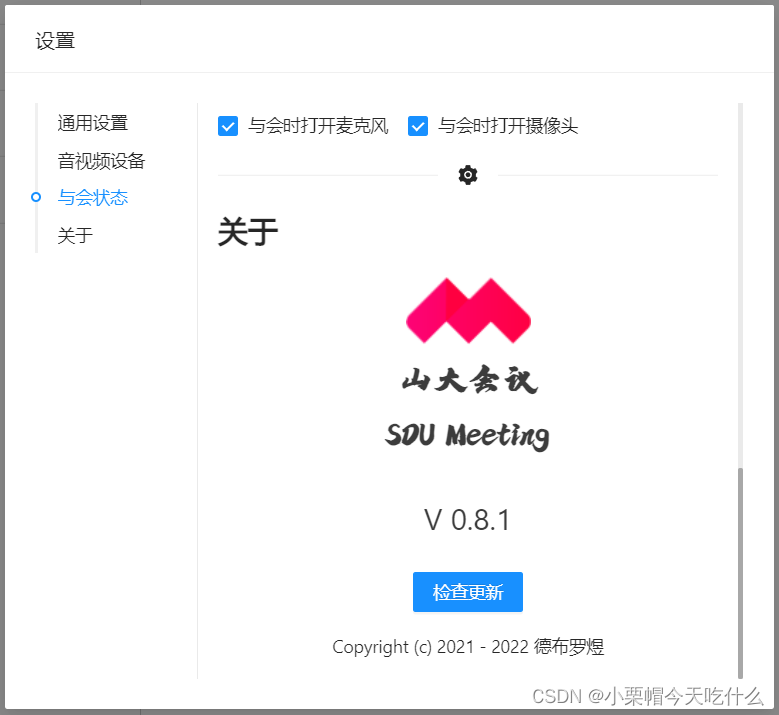
当应用检测到新版本后,将会以 Blob 的形式下载最新的版本更新包,下载完成后,将会通过我在 electron 中编写的函数将更新包保存在特定的位置。
const ipc = require('electron').ipcMain;
const fs = require('fs-extra');

ipc.handle('DOWNLOADED_UPDATE_ZIP', (evt, data) => {

	fs.writeFileSync(path.join(EXEPATH, 'resources', 'update.zip'), data, 'binary');
	return true;
});
由于在应用开启的时候,更新包需要替换的部分文件处于占用状态,因此我在 electron 中写了另一个函数,用以开启一个独立于 山大会议 应用本身的子进程,在山大会议自动关闭后,调用我用 C++ 写的一个更新(解压)程序,将更新包的内容提取出来覆盖掉旧的文件,从而实现应用的更新。
// electron 中的更新进程
const {
     app } = require('electron');
const cp = require('child_process');

function readyToUpdate() {

	const {
     spawn } = cp;
	const child = spawn(
		path.join(EXEPATH, 'resources/ReadyUpdater.exe'),
		['YES_I_WANNA_UPDATE_ASAR'],
		{

			detached: true,
			shell: true,
		}
	);
	if (mainWindow) mainWindow.close();
	child.unref();
	app.quit();
}
// ReadyUpdater.cpp

#include <iostream>
#include <stdlib.h>
#include <tchar.h>
#include <Windows.h>
#include "unzip.h"
using namespace std;

int main(int argc, char* argv[])
{

	Sleep(300);
	if (argc < 2) {

		cout << "您正以不当方式运行该程序" << endl;
	}
	else {

		char* safetyKey = argv[1];
		if (strcmp("YES_I_WANNA_UPDATE_ASAR", safetyKey) != 0) {

			cout << "你不应当执行该程序" << endl;
		}
		else {

			HZIP hz = OpenZip(_T(".\\resources\\update.zip"), 0);
			SetUnzipBaseDir(hz, _T(".\\resources"));
			ZIPENTRY ze;
			GetZipItem(hz, -1, &ze);
			int numitems = ze.index;
			// -1 gives overall information about the zipfile
			for (int zi = 0; zi < numitems; zi++)
			{

				ZIPENTRY ze;
				GetZipItem(hz, zi, &ze); // fetch individual details
				UnzipItem(hz, zi, ze.name);         // e.g. the item's name.
			}
			CloseZip(hz);
			system("del .\\resources\\update.zip");
			cout << "更新完成" << endl;
			cout << "请重启应用" << endl;
		}
	}
	system("pause");
	return 0;
}
边栏推荐
- 类似attention nlp
- 社区文章|MOSN 构建 Subset 优化思路分享
- 标准化、最值归一化、均值归一化应用场景的进阶思考
- Quickly play ci/cd graphical choreography
- [single chip microcomputer] [make buzzer sound] know the buzzer and let it make the sound you want
- [Shangshui Shuo series] day three - VIDEO
- 【单片机】【让蜂鸣器发声】认识蜂鸣器,让蜂鸣器发出你想要的声音
- 大佬们好,初次使用MySQL cdc 报错
- 向量1(类和对象)
- 微信小程序头像挂件制作
猜你喜欢

TDengine 连接器上线 Google Data Studio 应用商店

【LeetCode】9、回文数

Development status of full color LED display
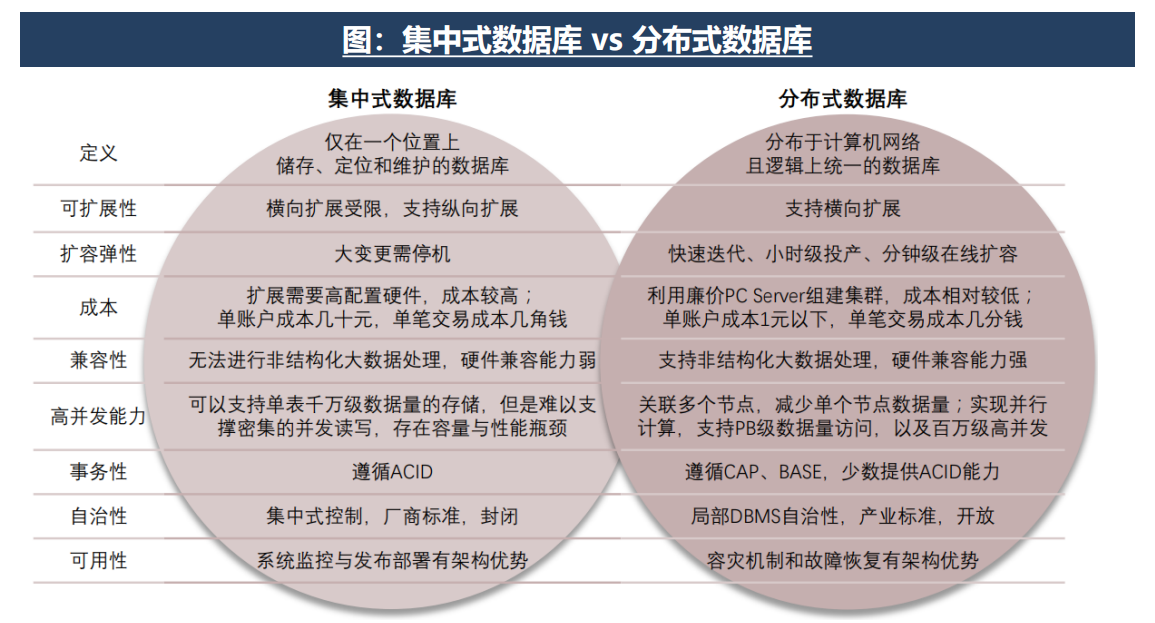
Research on ICT: domestic databases focus on the ICT market, and Huawei Gauss is expected to become the strongest
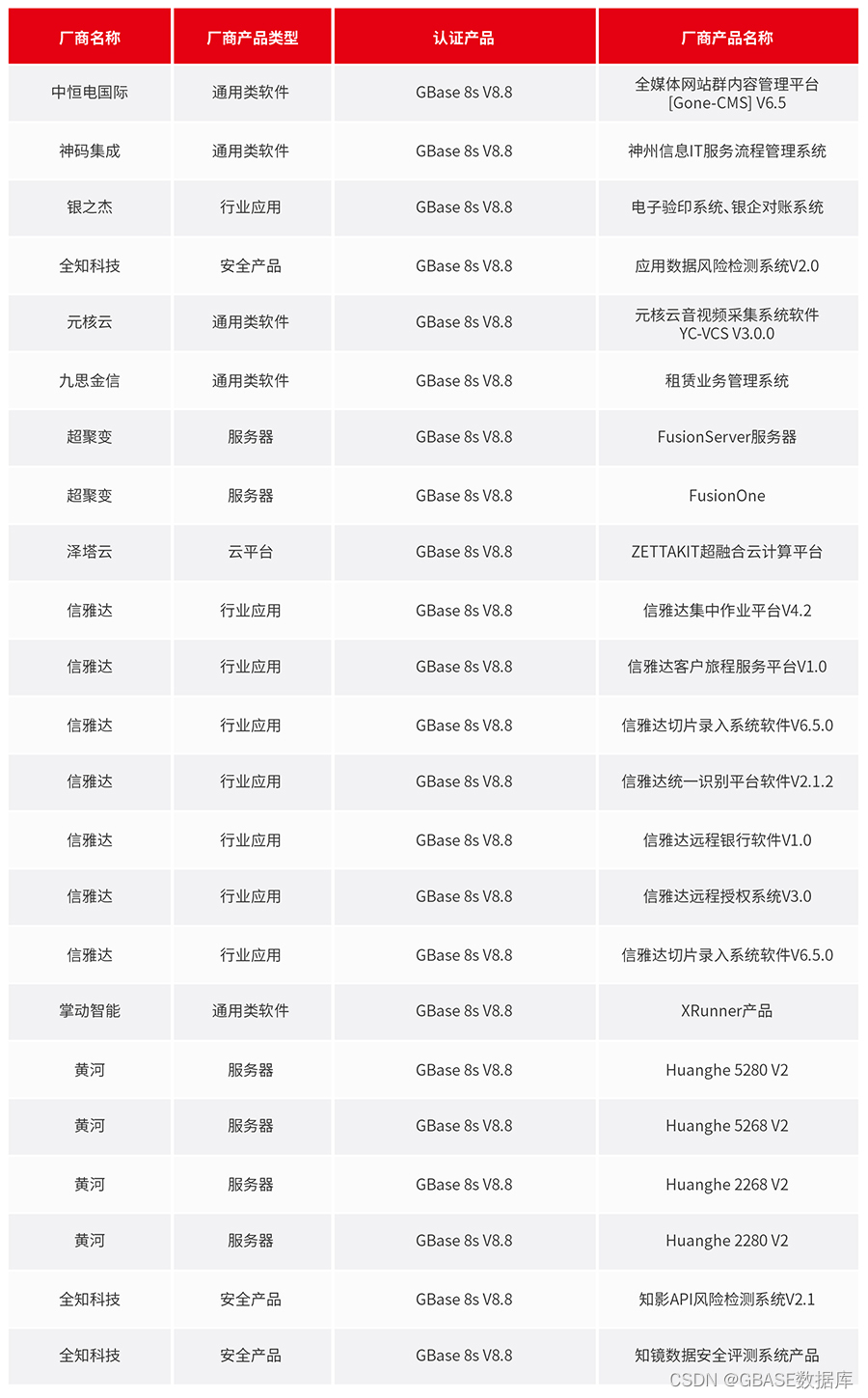
Promoting compatibility and adaptation, enabling coordinated development of gbase may adaptation Express

DevSecOps: CI/CD 流水线安全的最佳实践

Runmaide medical passed the hearing: Ping An capital was a shareholder with a loss of 630million during the year
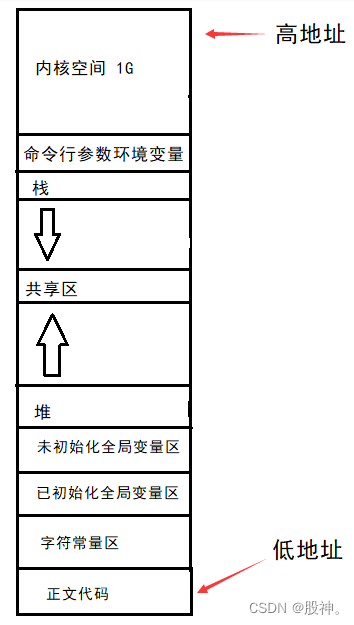
#进程地址空间

再次认识 WebAssembly

The summary of high concurrency experience under the billion level traffic for many years is written in this book without reservation
随机推荐
#进程地址空间
还整成这样
Devsecops: best practices for ci/cd pipeline security
[Newman] postman generates beautiful test reports
"Software defines the world, open source builds the future" 2022 open atom global open source summit will open at the end of July
“软件定义世界,开源共筑未来” 2022开放原子全球开源峰会7月底即将开启
关于 GIN 的路由树
Community article | mosn building subset optimization ideas sharing
pymssql模块使用指南
再次认识 WebAssembly
迷宫问题(BFS记录路径)
程序替换函数
阿里云中间件的开源往事
Quick sort_ sort
Discourse 的信任级别
【newman】postman生成漂亮的测试报告
Rosbag use command
New design of databend SQL planner
排序之归并排序
Yilian technology rushes to Shenzhen Stock Exchange: annual revenue of RMB 1.4 billion, 65% of which comes from Ningde times