当前位置:网站首页>Mysql8 installation and environment configuration
Mysql8 installation and environment configuration
2022-06-22 22:27:00 【Java factory director】
Windows To configure Mysql8
Keep creating , Accelerate growth ! This is my participation 「 Nuggets day new plan · 6 Yuegengwen challenge 」 Of the 28 God , Click to see the event details .
About author
- The authors introduce
Blog home page : Author URI
brief introduction :JAVA Quality creators in the field 、 A junior at school 、 Participate in various provincial competitions during school 、 National Games , Gain a series of honors 、 Alibaba cloud expert Blogger 、51CTO Expert bloggers
Pay attention to me : Pay attention to my learning materials 、 All the documents are downloaded , Update articles regularly every day , Inspirational to be a JAVA Senior program ape
1、 download MySQL 8.0.16
Log in to the official website :downloads.mysql.com/, The official link can be downloaded directly zip Compressed package
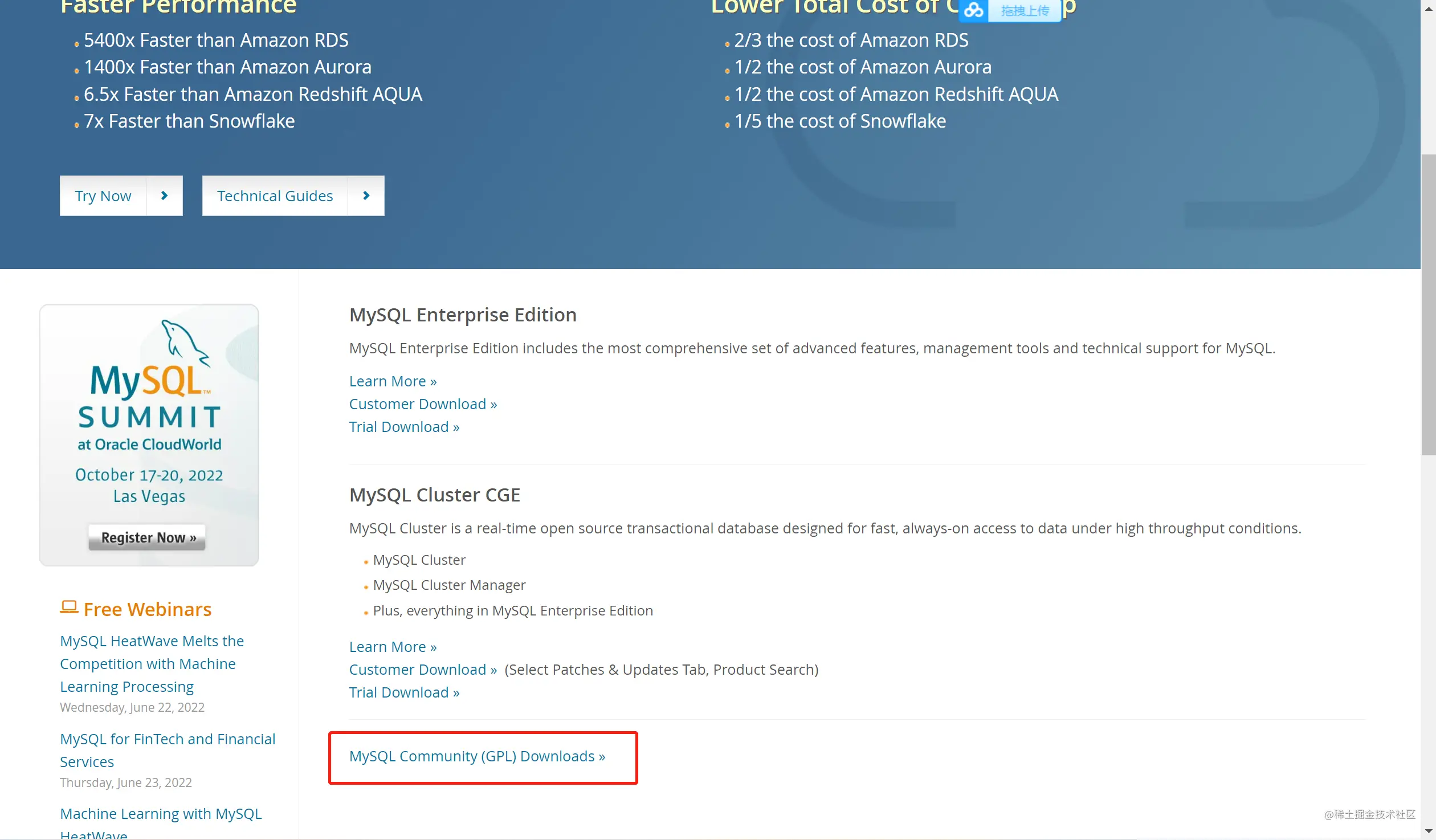


Decompress after downloading . My decompression location is D:\environment\Mysql\mysql-8.0.16-winx64
2、 modify environment variable
Add variables to the system variables MYSQL_HOME, The variable value is the installation path D:\environment\Mysql\mysql-8.0.16-winx64

stay path Add %MYSQL_HOME%\bin, Notice that there is no semicolon after this .

3、 Initialize and install
Create a new one under the decompression path you set my.ini file
[mysql]
#  Set up mysql Client default character set
default-character-set=utf8
[mysqld]
#  Set up 3306 port
port=3306


#  Set up mysql Installation directory ( Write your own decompression path here )
basedir=D:\environment\Mysql\mysql-8.0.16-winx64
#  Set up mysql Database data storage directory ( Write your own decompression path here and add \data)
datadir=D:\environment\Mysql\mysql-8.0.16-winx64\data


#  Maximum connections allowed
max_connections=200
#  Number of connection failures allowed .
max_connect_errors=10
#  The character set used by the server defaults to utf8
character-set-server=utf8
#  The default storage engine that will be used when creating a new table
default-storage-engine=INNODB
After writing , Open as administrator cmd, Enter the command :
mysqld --initialize --console
After executing the last command

Note that the red block diagram in the figure shows the temporary random password , You can record , You need to use .
Install after initialization , Use :
mysqld --install
# After installation
C:\Windows\system32>mysqld --install
Service successfully installed.
 # uninstall
mysqld --remove
4、 Start the service and change the password
Start with command mysql service
net start mysql
 # Successful launch
MySQL  The service is starting  .
MySQL  Service started successfully .
You need to change the password after startup , Enter the command to log in mysql:
mysql -u root -p

Welcome to the MySQL monitor.  Commands end with ; or \g.
Your MySQL connection id is 12
Server version: 8.0.16

Copyright (c) 2000, 2019, Oracle and/or its affiliates. All rights reserved.

Oracle is a registered trademark of Oracle Corporation and/or its
affiliates. Other names may be trademarks of their respective
owners.

Type 'help;' or '\h' for help. Type '\c' to clear the current input statement.
Here, use the temporary password you need to remember to log in , Then use the command
ALTER USER 'root'@'localhost' IDENTIFIED WITH mysql_native_password BY ' New password ';

Query OK, 0 rows affected (0.01 sec)
Change it to your own password , Here's the new password 6 Above position .
Input quit; , sign out mysql.
️ Afterword ️
The original purpose of the factory director's blog is very simple , I hope you will avoid detours in the process of learning , Learn more , If you are helpful to yourself, leaving your praise or attention is my greatest support , Your attention and praise give the factory director more motivation every day .
Don't understand part of the article , You can reply to me in the comment area , Let's talk about , Learning together , Progress together !
边栏推荐
- A case of 94 SQL optimization (the writing method used is often rejected)
- AtCoder abc256全题解(区间合并模板、矩阵快速幂优化dp、线段树……)
- CyCa children's physique etiquette Shenzhen training results assessment successfully concluded
- 【ROS 入门学习 】CmakeList.txt 和Packages.xml释义
- [GWCTF 2019]mypassword XSS
- KDD'22 | 阿里: 基于EE探索的精排CTR预估
- 2022年6月25日PMP考试通关宝典-6
- [Li mu] how to read papers [intensive reading of papers]
- pycharm 配置远程连接服务器开发环境
- volume rendering
猜你喜欢

How to use the data dictionary function in the low code platform of the Internet of things?

Dynamic tree + data table + pagination of spa project development
![下一个排列[发挥主观能动性发现规律]](/img/bb/262e1a21e4babb8d221d737ced3bcc.png)
下一个排列[发挥主观能动性发现规律]
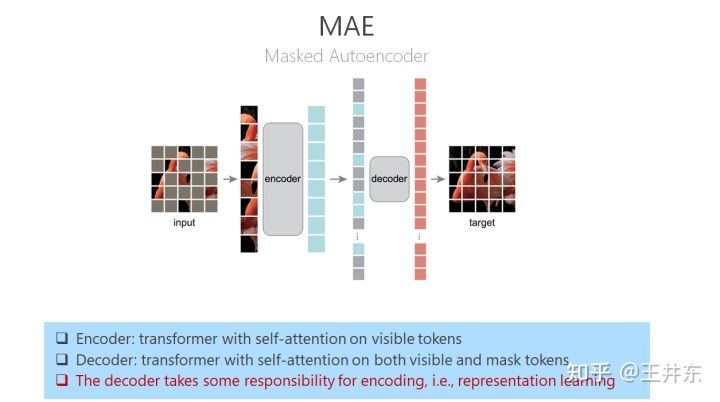
自监督表征预训练之掩码图像建模:CAE 及其与 MAE、BEiT 的联系

Implementation of depth traversal adjacency matrix of figure 6-5
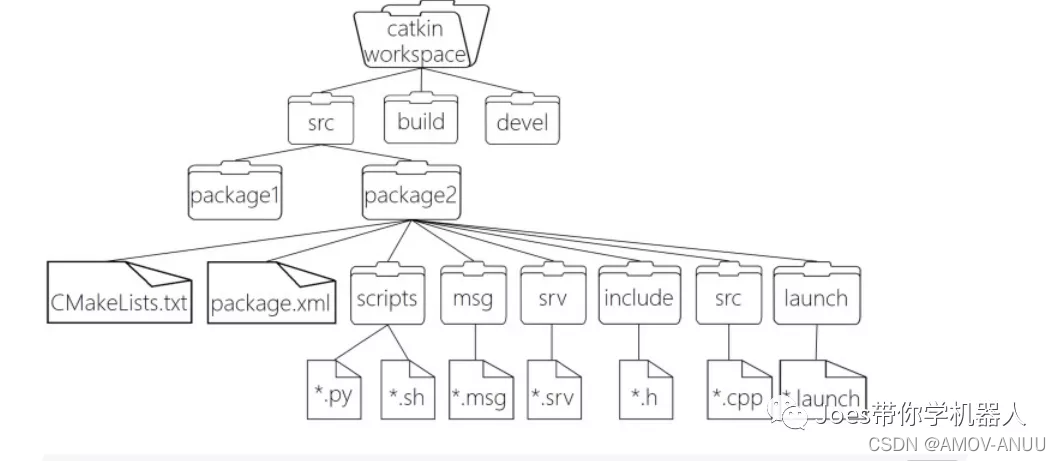
【ROS 入门学习 】CmakeList.txt 和Packages.xml释义

Icml2022 | using virtual nodes to promote graph structure learning
6-7 图的深度遍历-邻接表实现
Mask image modeling for self supervised representation pre training: CAE and its relationship with Mae and Beit

【论文解读】关于基于视觉无人机自主降落平台的论文梳理
随机推荐
Registration of spa project development
NFT can only be viewed from afar, but not blatantly played
Redis core technology and practice: learning summary directory
自监督表征预训练之掩码图像建模:CAE 及其与 MAE、BEiT 的联系
Las point cloud data thinning in ArcGIS
Note: by the end of 2022, the printing entrance of Guangdong second-class cost engineer's admission card has been opened
liunx 安装mysql
Home page navigation + left menu of spa project development
Quick sort template & considerations
立体渲染
A hundred lines of code to realize reliable delay queue based on redis
June25,2022 PMP Exam clearance manual-6
6-3 non recursive traversal of binary tree
v-if和v-for哪个优先级更高?
Developing salary management system based on C language course paper + source code and executable EXE file
7-1 前序序列创建二叉树
Microsoft edge browser will support network speed measurement, built-in calculator and unit conversion tool
shell(34) : 时间
TC397 Flash
【知乎知识主推荐】 无人机中的城堡- 专注于无人机在不同技术领域的应用