当前位置:网站首页>Day_ 12 smart health project jasperreports
Day_ 12 smart health project jasperreports
2022-06-23 06:22:00 【fat ۣۖ tiger ۣۖ】
Smart health project The first 12 Chapter
In the previous course, we finished exporting operation data to Excel File functionality . In enterprise development , In addition to the usual Excel Formal report , also PDF Form of statement . So how to export PDF In the form of a report ?
1. common PDF Report generation method
1.1 iText
iText It's a famous open source site sourceforge A project , Is used to generate PDF One of the documents java Class library . adopt iText Not only can you generate PDF or rtf Documents , And you can put XML、Html File to PDF file . iText It's very convenient to install , download iText.jar After the document , It only needs to be in the... Of the system CLASSPATH Add iText.jar The path of , You can use... In the program iText Class library .
maven coordinate :
<dependency>
  <groupId>com.lowagie</groupId>
  <artifactId>itext</artifactId>
  <version>2.1.7</version>
</dependency>
Sample code :
package com.itheima.app;

import com.lowagie.text.Document;
import com.lowagie.text.DocumentException;
import com.lowagie.text.Paragraph;
import com.lowagie.text.pdf.PdfWriter;
import java.io.FileNotFoundException;
import java.io.FileOutputStream;

public class ItextDemo {

    public static void main(String[] args) {

        try {

            Document document = new Document();
            PdfWriter.getInstance(document, new FileOutputStream("D:\\test.pdf"));
            document.open();
            document.add(new Paragraph("hello itext"));
            document.close();
        } catch (FileNotFoundException e) {

            e.printStackTrace();
        } catch (DocumentException e) {

            e.printStackTrace();
        }
    }
}
1.2 JasperReports
JasperReports Is a powerful 、 Flexible report generation tool , Able to display rich page content , And turn it into PDF,HTML, perhaps XML Format . The library consists entirely of Java It's written in , Can be used in a variety of Java Applications , Include J2EE,Web Generate dynamic content in the application . In general ,JasperReports Will combine Jaspersoft Studio( Template designer ) Use export PDF report form .
maven coordinate :
<dependency>
  <groupId>net.sf.jasperreports</groupId>
  <artifactId>jasperreports</artifactId>
  <version>6.8.0</version>
</dependency>
2. JasperReports summary
2.1 JasperReports Quick experience
In this section, let's first experience JasperReports Development process of .
First step : establish maven engineering , Import JasperReports Of maven coordinate
<dependency>
  <groupId>net.sf.jasperreports</groupId>
  <artifactId>jasperreports</artifactId>
  <version>6.8.0</version>
</dependency>
<dependency>
    <groupId>junit</groupId>
    <artifactId>junit</artifactId>
    <version>4.12</version>
</dependency>
The second step : Will be ready in advance jrxml File copy to maven In Engineering ( How to create... Will be explained in detail later jrxml file )

The third step : Write unit tests , Output PDF report form
@Test
public void testJasperReports()throws Exception{

    String jrxmlPath =
        "D:\\ideaProjects\\projects111\\jasperdemo\\src\\main\\resources\\demo.jrxml";
    String jasperPath =
        "D:\\ideaProjects\\projects111\\jasperdemo\\src\\main\\resources\\demo.jasper";

    // Compiling templates
    JasperCompileManager.compileReportToFile(jrxmlPath,jasperPath);

    // Structural data
    Map paramters = new HashMap();
    paramters.put("reportDate","2019-10-10");
    paramters.put("company","itcast");
    List<Map> list = new ArrayList();
    Map map1 = new HashMap();
    map1.put("name","xiaoming");
    map1.put("address","beijing");
    map1.put("email","[email protected]");
    Map map2 = new HashMap();
    map2.put("name","xiaoli");
    map2.put("address","nanjing");
    map2.put("email","[email protected]");
    list.add(map1);
    list.add(map2);

    // Fill in the data
    JasperPrint jasperPrint =
        JasperFillManager.fillReport(jasperPath,
                                     paramters,
                                     new JRBeanCollectionDataSource(list));

    // The output file
    String pdfPath = "D:\\test.pdf";
    JasperExportManager.exportReportToPdfFile(jasperPrint,pdfPath);
}
2.2 JasperReports principle
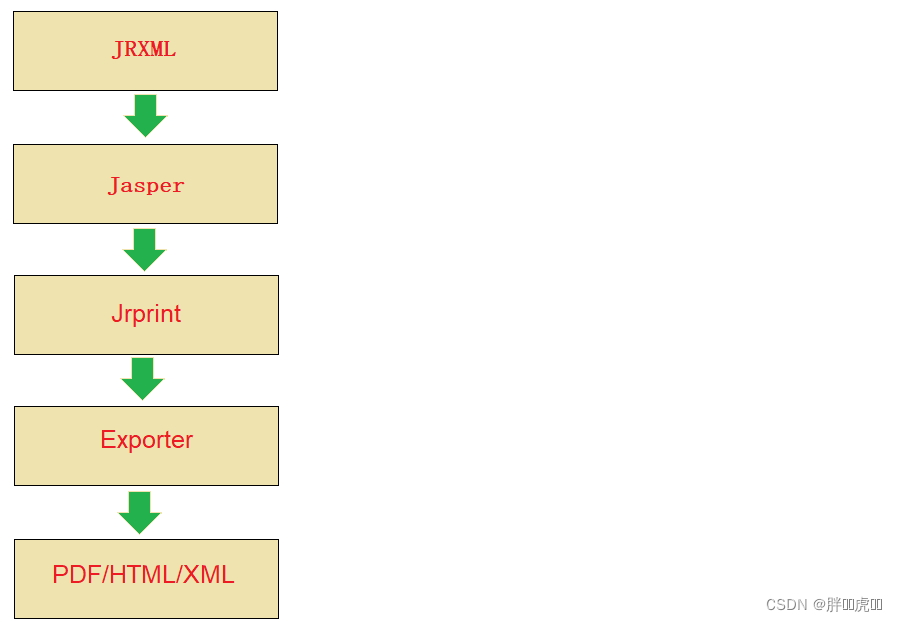
- JRXML: Report filling template , The essence is a xml file
- Jasper: from JRXML Binary file compiled from template , For code filling data
- Jrprint: When the data is filled Jasper Object generated after , Used to output reports
- Exporter: Report output management class , You can specify the format of the report to be output
- PDF/HTML/XML: Report form
2.3 Development process
Use JasperReports export pdf report form , The development process is as follows :
- Make report template
- Template compilation
- Structural data
- Fill in the data
- The output file
3. Template designer Jaspersoft Studio
Jaspersoft Studio Is a graphical report design tool , It's very convenient to design PDF Report template file ( It's really just a xml file ), combining JasperReports Use , You can render PDF file .
Download address :https://community.jaspersoft.com/community-download

After downloading, you will get the following installation files :
Double click the installation directly .
3.1 Jaspersoft Studio Panel Introduction

3.2 Create project and template files
open Jaspersoft Studio Tools , First you need to create a project , The creation process is as follows :

After creating the project , Right click on the project , Create template file :

You can see that the suffix of the template file created and processed is jrxml, From the design area panel, you can see the following effects :

You can see that the whole file is visual , Divided into several areas (Title、Page Header、Column Header etc. ), If some areas are not needed, they can also be deleted .
There are three view modes in the lower left corner of the panel :Design( Design patterns )、Source( Source mode )、Preview( Preview Mode ):
- adopt Design The view can see the intuitive structure and style of the template
- adopt Source View can see the file xml Source code
- adopt Preview The view can preview PDF Effect after file output
Through the right Palette The window can see the common elements :

3.3 Design template file
3.3.1 Increase or decrease Band
You can delete or add areas in the template file as appropriate ( be called Band), For example, in Page Header Right click on the area , Select Delete menu :
among Detail Multiple fields can be added , There can only be one... In other areas .
3.3.2 Apply element to template
3.3.2.1 Image Elements
From right side Palette Select... In the panel Image Elements ( Picture elements ), Drag to Title Area :
The following dialog box will pop up , There are many creation modes , choice URL Pattern , And input the connection address of a network picture in the input box below :
You can select picture elements , Drag the mouse to adjust the position , You can also adjust the size of the picture with the mouse .
After adjustment , You can click on the Preview Enter the preview view , see PDF Output effect :
Click on Source Enter the source view , see xml The contents of the document :
In fact, what we created above demo1.jrxml Template file , It's essentially one xml file , It's just that we don't need to write it ourselves xml The content of the document , But through Jaspersoft Studio This designer software can be used for visual design .
3.3.2.2 Static Text Elements
Static Text Elements are static text elements , Used in PDF Display static text information on the file :
double-click Title In the panel Static Text Elements , You can modify the text content :
Selected elements , You can also adjust the font and size of the text :
Click on Preview Enter the preview view , See the effect :
3.3.2.3 Current Date Elements
Current Date Element is used to output the current system date in the report , Drag the change element to Title Area :
Preview the output effect :
The default date output format is shown in the figure above , You can go back to the design view and select the element , stay Properties In the panel Text Field Modify the date output format in the sub tag :
Change the date format :
Save the file and preview again :
3.3.3 Dynamic data filling
Up there we are PDF The file shows some static data , So how do you implement it if you need to dynamically display some data ? We can use Outline In the panel Parameters and Fields To achieve .
Parameters Usually used to display single data ,Fields It is usually used to show the list data that needs to be cycled .
3.3.3.1 Parameters
stay Parameters Right click on , Create a Parameter Parameters :
It can be on the right Properties Modify the parameter name just created in the panel :
Will just create the Parameter Drag the parameter into the panel :
Enter the preview view , See the effect :
Because we use Parameter Dynamic elements , So you need to dynamically assign values to it before previewing :
Be careful : Because we are Jaspersoft Studio Preview in the software , Therefore, you need to use the above input box to dynamically enter Parameter assignment , When used in later projects , Need us to Java The dynamic in the program is Parameter Data filling by assignment .
3.3.3.2 Fields
Use Fields Method to fill in data , Both available jdbc Data source mode can also be used JavaBean Data source mode .
- jdbc Data source data filling
First step : stay Repository Explorer The palette , stay Data Adapters Click on the right , Create a data adapter
The second step : choice Database JDBC Connection
The third step : choice mysql database , And perfect jdbc Connection information
In order to be able to Jaspersoft Studio Preview the data in the database , Need to add MySQL Driver package
Step four : stay Outline In the view , Right click on the project name , choice Database and Query menu
Step five : Select the newly created... In the pop-up dialog box JDBC Database connection options
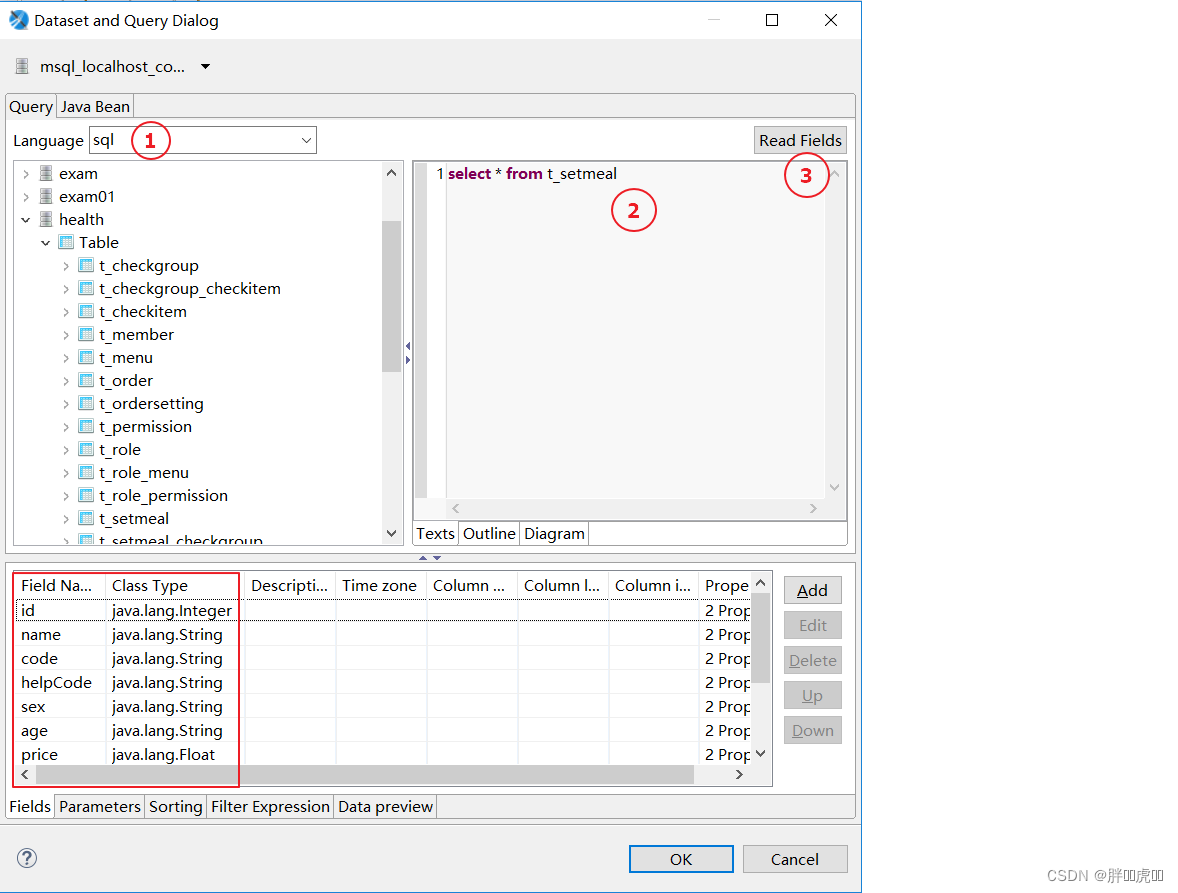
Step six : In the pop-up dialog Language choice sql, Enter... In the right field SQL Statement and click Read Fields Button
You can see by clicking on the above Read Fields Button , It has been read t_setmeal All field information in the table is shown below , These fields can be deleted or repositioned as needed
Step seven : stay Outline In the view Fields You can see t_setmeal Related field information in the table , Drag a field to the of the design area Detail Area and adjust position
You can see , Dragging Fields When you get to the design area , Two elements will be generated at the same time , One is static text , One is the dynamic element . Static text is equivalent to the header of a table , You can modify the text content as needed . The effect of the final design is as follows :
Step eight : Use Preview Preview the preview view
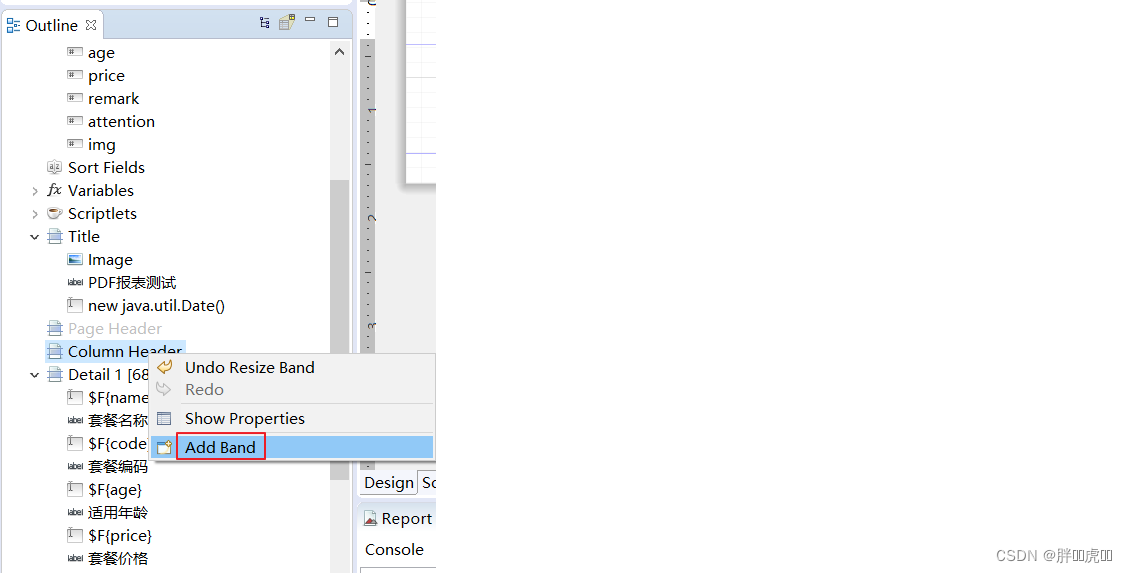
As you can see from the picture above , Although the list data shows , But there are still problems with the presentation . When each data is traversed, the header is traversed again . What's going on here ? This is due to the header and dynamic Fields All in Detail Area . In order to solve the above problems , You need to put the header in Column Header Area , Will be dynamic Fields Put it in Detail Area . The specific operation is as follows :
1、 stay Outline View's Column Header Right click to create an area
2、 take Detail Drag the static text under to Column Header Next
After dragging, see the following :
3、 Adjust static text in Column Header The location of the area , The end result is as follows
4、 Preview view effect
- JavaBean Data source data filling
First step : Copy the above demo1.jrxml file , Change the name to demo2.jrxml
modify Report Name:
The second step : open demo2.jrxml file , take detail Dynamics in the region Fields Element delete 
The third step : take Outline The palette Fields Delete all fields under 
Step four : eliminate JDBC Data sources and related data SQL sentence

Step five : stay Fields Right click to create a new Field

After the creation is completed, it is in Properties Modify in the property panel Field The name of 
Step six : Will create the Fields Drag to Detail Area and adjust the position

Be careful : Use this JavaBean Data source data filling method , Unable to preview normally , Because these dynamics Fields Need to be in Java Dynamic data filling in the program .
3.4 combination JasperReports Output report
We have used Jaspersoft Studio Two template files are designed :demo1.jrxml and demo2.jrxml. among demo1.jrxml The dynamic list data is based on JDBC Data source method for data filling ,demo2.jrxml The dynamic list data is based on JavaBean Data source method for data filling . In this section, we will combine JasperReports Of Java API To complete pdf Report output .
3.4.1 JDBC Fill data in data source mode
First step : establish maven engineering , The import related maven coordinate
<dependency>
    <groupId>net.sf.jasperreports</groupId>
    <artifactId>jasperreports</artifactId>
    <version>6.8.0</version>
</dependency>
<dependency>
    <groupId>junit</groupId>
    <artifactId>junit</artifactId>
    <version>4.12</version>
</dependency>
<dependency>
    <groupId>mysql</groupId>
    <artifactId>mysql-connector-java</artifactId>
    <version>5.1.47</version>
</dependency>
The second step : It will be designed demo1.jrxml Copy the file to the of the current project resources Under the table of contents

The third step : Write unit tests
@Test
public void testReport_JDBC() throws Exception{

    Class.forName("com.mysql.jdbc.Driver");
    Connection connection =
        DriverManager.getConnection("jdbc:mysql://localhost:3306/health",
                                    "root",
                                    "root");

    String jrxmlPath = "D:\\ideaProjects\\projects111\\jasperreports_test\\src\\main\\resources\\demo1.jrxml";
    String jasperPath = "D:\\ideaProjects\\projects111\\jasperreports_test\\src\\main\\resources\\demo1.jasper";

    // Compiling templates
    JasperCompileManager.compileReportToFile(jrxmlPath,jasperPath);

    // Structural data
    Map paramters = new HashMap();
    paramters.put("company"," Spreading wisdom Podcast ");

    // Fill in the data --- Use JDBC Data source filling
    JasperPrint jasperPrint =
        JasperFillManager.fillReport(jasperPath,
                                    paramters,
                                    connection);
    // The output file
    String pdfPath = "D:\\test.pdf";
    JasperExportManager.exportReportToPdfFile(jasperPrint,pdfPath);
}
Through the above operation steps, you can output pdf file , But Chinese places can't be displayed normally . This is because JasperReports Chinese support is not friendly by default , We need to fix it ourselves . The specific operation steps are as follows :
1、 stay Jaspersoft Studio Open in demo1.jrxml file , Select Chinese related elements , Uniformly set the font to “ Chinese Songti ” And the revised demo1.jrxml Copy back to maven In Engineering
2、 Resources in this chapter / Solve the problem that Chinese cannot be displayed. Copy the files in the directory to maven engineering resources Directory 
Re execute the unit test export after following the above steps PDF file :

3.4.2 JavaBean Fill data in data source mode
First step : In order to avoid the problem that Chinese cannot be displayed , First, you need to demo2.jrxml The font of relevant elements of the file is changed to “ Chinese Songti ” And will demo2.jrxml File copy to maven engineering resources Under the table of contents 
The second step : Write unit test method output PDF file
@Test
public void testReport_JavaBean() throws Exception{

    String jrxmlPath = "D:\\ideaProjects\\projects111\\jasperreports_test\\src\\main\\resources\\demo2.jrxml";
    String jasperPath = "D:\\ideaProjects\\projects111\\jasperreports_test\\src\\main\\resources\\demo2.jasper";

    // Compiling templates
    JasperCompileManager.compileReportToFile(jrxmlPath,jasperPath);

    // Structural data
    Map paramters = new HashMap();
    paramters.put("company"," Spreading wisdom Podcast ");

    List<Map> list = new ArrayList();
    Map map1 = new HashMap();
    map1.put("tName"," Induction medical package ");
    map1.put("tCode","RZTJ");
    map1.put("tAge","18-60");
    map1.put("tPrice","500");

    Map map2 = new HashMap();
    map2.put("tName"," Sunshine parents elderly health examination ");
    map2.put("tCode","YGBM");
    map2.put("tAge","55-60");
    map2.put("tPrice","500");
    list.add(map1);
    list.add(map2);

    // Fill in the data --- Use JavaBean Data source filling
    JasperPrint jasperPrint =
        JasperFillManager.fillReport(jasperPath,
                                     paramters,
                                     new JRBeanCollectionDataSource(list));
    // The output file
    String pdfPath = "D:\\test.pdf";
    JasperExportManager.exportReportToPdfFile(jasperPrint,pdfPath);
}
View the output effect :

4. Output operation data in the project PDF report form
In this section, we will implement... Of operation data in the project PDF Report export function .
4.1 Design PDF Template file
Use Jaspersoft Studio Design operation data PDF Report template file health_business3.jrxml, The effect of the design is as follows :

This file is already available in resources , It can be used directly .
4.2 Set up the environment
First step : stay health_common engineering pom.xml Import JasperReports Of maven coordinate
<dependency>
    <groupId>net.sf.jasperreports</groupId>
    <artifactId>jasperreports</artifactId>
    <version>6.8.0</version>
</dependency>
The second step : The template file provided in the resource health_business3.jrxml Copied to the health_backend engineering template Under the table of contents

The third step : Copy the resource files related to the problem being solved to the project

4.3 Modify page
modify health_backend engineering report_business.html page , Add export PDF And bind the event

4.4 Java Code implementation
stay health_backend engineering ReportController Provided in the exportBusinessReport4PDF Method
// Export operation data to pdf And provide client download
@RequestMapping("/exportBusinessReport4PDF")
public Result exportBusinessReport4PDF(HttpServletRequest request, HttpServletResponse response) {

    try {

        Map<String, Object> result = reportService.getBusinessReportData();

        // Get the returned result data , Prepare to write report data to PDF In file
        List<Map> hotSetmeal = (List<Map>) result.get("hotSetmeal");

        // Get the absolute disk path of the template file dynamically
        String jrxmlPath =
            request.getSession().getServletContext().getRealPath("template") + File.separator + "health_business3.jrxml";
        String jasperPath =
            request.getSession().getServletContext().getRealPath("template") + File.separator + "health_business3.jasper";
        // Compiling templates
        JasperCompileManager.compileReportToFile(jrxmlPath, jasperPath);

        // Fill in the data --- Use JavaBean Data source filling
        JasperPrint jasperPrint =
            JasperFillManager.fillReport(jasperPath,result,
                                         new JRBeanCollectionDataSource(hotSetmeal));

        ServletOutputStream out = response.getOutputStream();
        response.setContentType("application/pdf");
        response.setHeader("content-Disposition", "attachment;filename=report.pdf");

        // The output file
        JasperExportManager.exportReportToPdfStream(jasperPrint,out);

        return null;
    } catch (Exception e) {

        e.printStackTrace();
        return new Result(false, MessageConstant.GET_BUSINESS_REPORT_FAIL);
    }
}






边栏推荐
- Pyqt5 setting window top left Icon
- 内存分析与内存泄漏检测
- Tcp/ip explanation (version 2) notes / 3 link layer / 3.3 full duplex, energy saving, automatic negotiation mechanism, 802.1x flow control / 3.3.3 link layer flow control
- SSM project construction
- Runc symbolic link mount and container escape vulnerability alert (cve-2021-30465)
- CPU的功能和基本结构
- Leetcode topic resolution valid anagram
- mysql读已提交和可重复度区别
- Day_ 04 smart health project - appointment management - package management
- Fraction to recursing decimal
猜你喜欢
【Cocos2d-x】可擦除的Layer:ErasableLayer

Day_01 传智健康项目-项目概述和环境搭建

mongodb 4. X binding multiple IP startup errors

qt creater搭建osgearth环境(osgQT MSVC2017)

Summary of ant usage (I): using ant to automatically package apk

Day_06 传智健康项目-移动端开发-体检预约
Pyqt5 setting window top left Icon

Day_05 传智健康项目-预约管理-预约设置

RF content learning
射频内容学习
随机推荐
Pat class B 1023 minimum decimals
【Vivado那些事儿】XilinxCEDStore介绍
[open source project] excel export Lua configuration table tool
Kotlin collaboration +retro most elegant network request use
程序员的真实想法 | 每日趣闻
机器学习3-岭回归,Lasso,变量选择技术
Day_ 13 smart health project - Chapter 13
Newbeecoder. Page animation switching of UI control library
11、 Realization of textile fabric off shelf function
Design scheme of Small PLC based on t5l1
mongodb 4.x绑定多个ip启动报错
[cocos2d-x] screenshot sharing function
qt creater搭建osgearth环境(osgQT MSVC2017)
[cocos2d-x] custom ring menu
SQL statement error caused by the same SQL table name and function name.
Given a node of a binary tree, return the successor node of the node
Jour 13 Projet de santé mentale - chapitre 13
Efficient office of fintech (I): automatic generation of trust plan specification
ant使用总结(一):使用ant自动打包apk
Microsoft interview question: creases in origami printing