当前位置:网站首页>Hongmeng learning notes: creating layouts using XML
Hongmeng learning notes: creating layouts using XML
2022-06-25 06:39:00 【InfoQ】
Preface
- Component It's an object drawn on the screen , Users can interact with it .
- ComponentContainer It's one for holding other Component and ComponentContainer Object's container .

Java UI Layout
XML Create a layout

<?xml version="1.0" encoding="utf-8"?>
<DirectionalLayout
xmlns:ohos="http://schemas.huawei.com/res/ohos"
ohos:height="match_parent"
ohos:width="match_parent"
ohos:orientation="vertical">
</DirectionalLayout>
Join in Text Child components
- Identity properties : ohos:id="$+id:text" , Set the identity for this component text , stay Java This can be used in the code id Identity acquisition XML Components defined in the layout ; among + The function of the number is if id If it doesn't exist, it generates id Constant , If it's time to id If it exists, use the existing constant ; stay Java The generated constant can be used to obtain the component in the code ;
- Width and height properties : The width fills the parent container ohos:width=“match_parent” ; High package content ohos:height=“match_content” ;
- Text content properties : This is a Text Unique properties of components , ohos:text=“ Custom layout Text Components ” , Show " Custom layout Text Components " written words ;
- Text font size attribute : This is a Text Unique properties of components , ohos:text_size=“100” ;
- Text alignment properties : This is a Text Unique properties of components , ohos:text_alignment=“center” In the middle ;
<Text
ohos:id="$+id:text"
ohos:width="match_content"
ohos:height="match_content"
ohos:text_color="#FFDE1968"
ohos:text=" Learn Hongmeng together "
ohos:text_size="40fp"
ohos:center_in_parent="true"
/>
Join in Button Child components
<Button
ohos:id="$+id:button"
ohos:width="match_content"
ohos:height="match_content"
ohos:text=" Click here for a surprise "
ohos:text_size="19fp"
ohos:text_color="#FF0C43CF"
ohos:top_padding="8vp"
ohos:bottom_padding="8vp"
ohos:right_padding="70vp"
ohos:left_padding="70vp"
ohos:center_in_parent="true"
ohos:below="$id:text"
ohos:margin="10vp"/>
<?xml version="1.0" encoding="utf-8"?>
<DependentLayout
xmlns:ohos="http://schemas.huawei.com/res/ohos"
ohos:width="match_parent"
ohos:height="match_parent"
ohos:orientation="vertical"
ohos:padding="32">
<Text
ohos:id="$+id:text"
ohos:width="match_content"
ohos:height="match_content"
ohos:text_color="#FFDE1968"
ohos:text=" Learn Hongmeng together "
ohos:text_size="40fp"
ohos:center_in_parent="true"
/>
<Button
ohos:id="$+id:button"
ohos:width="match_content"
ohos:height="match_content"
ohos:text=" Click here for a surprise "
ohos:text_size="19fp"
ohos:text_color="#FF0C43CF"
ohos:top_padding="8vp"
ohos:bottom_padding="8vp"
ohos:right_padding="70vp"
ohos:left_padding="70vp"
ohos:center_in_parent="true"
ohos:below="$id:text"
ohos:margin="10vp"/>
</DependentLayout>
establish Ability

XMLAbility
XMLAbility.javaXMLAbilitySlice.java
{
 "orientation": "unspecified",
 "name": "com.example.helloworld.XMLAbility",
 "icon": "$media:icon",
 "description": "$string:xmlability_description",
 "label": "$string:entry_XMLAbility",
 "type": "page",
 "launchType": "standard"
 }
config.json{
"app": {
"bundleName": "com.example.helloworld",
"vendor": "example",
"version": {
"code": 1000000,
"name": "1.0.0"
}
},
"deviceConfig": {},
"module": {
"package": "com.example.helloworld",
"name": ".MyApplication",
"mainAbility": "com.example.helloworld.MainAbility",
"deviceType": [
"phone"
],
"distro": {
"deliveryWithInstall": true,
"moduleName": "entry",
"moduleType": "entry",
"installationFree": true
},
"abilities": [
{
"orientation": "unspecified",
"name": "com.example.helloworld.XMLAbility",
"icon": "$media:icon",
"description": "$string:xmlability_description",
"label": "$string:entry_XMLAbility",
"type": "page",
"launchType": "standard"
},
{
"skills": [
{
"entities": [
"entity.system.home"
],
"actions": [
"action.system.home"
]
}
],
"orientation": "unspecified",
"name": "com.example.helloworld.MainAbility",
"icon": "$media:icon",
"description": "$string:mainability_description",
"label": "$string:entry_MainAbility",
"type": "page",
"launchType": "standard"
}
]
}
}
XMLAbility Load the layout file
package com.example.helloworld;

import com.example.helloworld.slice.XMLAbilitySlice;
import ohos.aafwk.ability.Ability;
import ohos.aafwk.content.Intent;

public class XMLAbility extends Ability {
 @Override
 public void onStart(Intent intent) {
 super.onStart(intent);
// super.setMainRoute(XMLAbilitySlice.class.getName());
 //  Displays custom  ability_xml.xml  Layout file
 super.setUIContent(ResourceTable.Layout_ability_xml);
 }
}
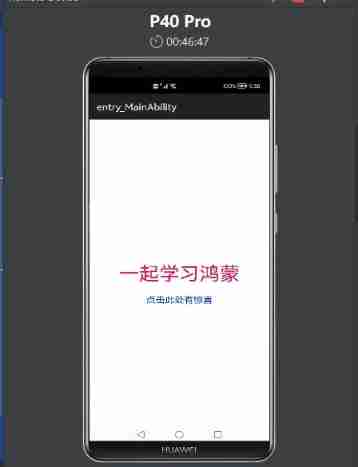
Run code :
summary
边栏推荐
- [speech discrimination] discrimination of speech signals based on MATLAB double threshold method [including Matlab source code 1720]
- [kicad image] download and installation
- Drosophila played VR and entered nature. It was found that there were attention mechanisms and working memory. The insect brain was no worse than that of mammals
- Difference between rest and WebServices
- @The difference between notempty, @notnull and @notblank
- JD 8 fleet stores search history, deletes history, clears history (not finished)
- How to configure log4j to only keep log files for the last seven days?
- Report on development status and investment strategy recommendations of global and Chinese graphite polystyrene board industry 2022-2028
- DNS domain name system
- Uncaught TypeError: Cannot read properties of undefined (reading ‘prototype‘)
猜你喜欢

Sleep quality today 67 points

How to find happiness in programming and get lasting motivation?
SAP QM executes the transaction code qp01, and the system reports an error -material type food is not defined for task list type Q-

ACWING2013. 三条线

Zero foundation wants to learn web security, how to get started?

ACWING/2004. Misspelling

Cannot activate inspection type when SAP retail uses transaction code mm41 to create commodity master data?

Cs8126t 3.1w mono ultra low EMI unfiltered class D audio power amplifier IC

JS to determine whether an element exists in the array (four methods)

有能力的人从不抱怨大环境!
随机推荐
Derivation of sin (a-b) =sina*cosb-sinb*cosa
MSG_ OOB MSG_ PEEK
How to find happiness in programming and get lasting motivation?
The five minute demonstration "teaches" actors to speak foreign languages and can seamlessly switch languages. This AI dubbing company has just received a round a financing of 20million US dollars
Query process of MySQL secondary index
@The difference between notempty, @notnull and @notblank
How to deploy locally developed SAP ui5 applications to ABAP servers
General test point ideas are summarized and shared, which can be directly used in interview and actual software testing
Unity获取资源路径
Cs8126t 3.1w mono ultra low EMI unfiltered class D audio power amplifier IC
R & D thinking 07 - embedded intelligent product safety certification required
ARM processor operating mode
Tp6 interface returns three elements
How do I check swift if two arrays contain the same elements, regardless of the order in which they appear?
Streaming a large file using PHP
Usage of STL map
Observation configuring wmic
【ROS2】为什么要使用ROS2?《ROS2系统特性介绍》
Gb28181 protocol -- timing
Laravel8+ wechat applet generates QR code