当前位置:网站首页>C # WinForm photo album function, picture zooming, dragging, preview Pagination
C # WinForm photo album function, picture zooming, dragging, preview Pagination
2022-06-22 14:34:00 【Xiongsiyu】
effect
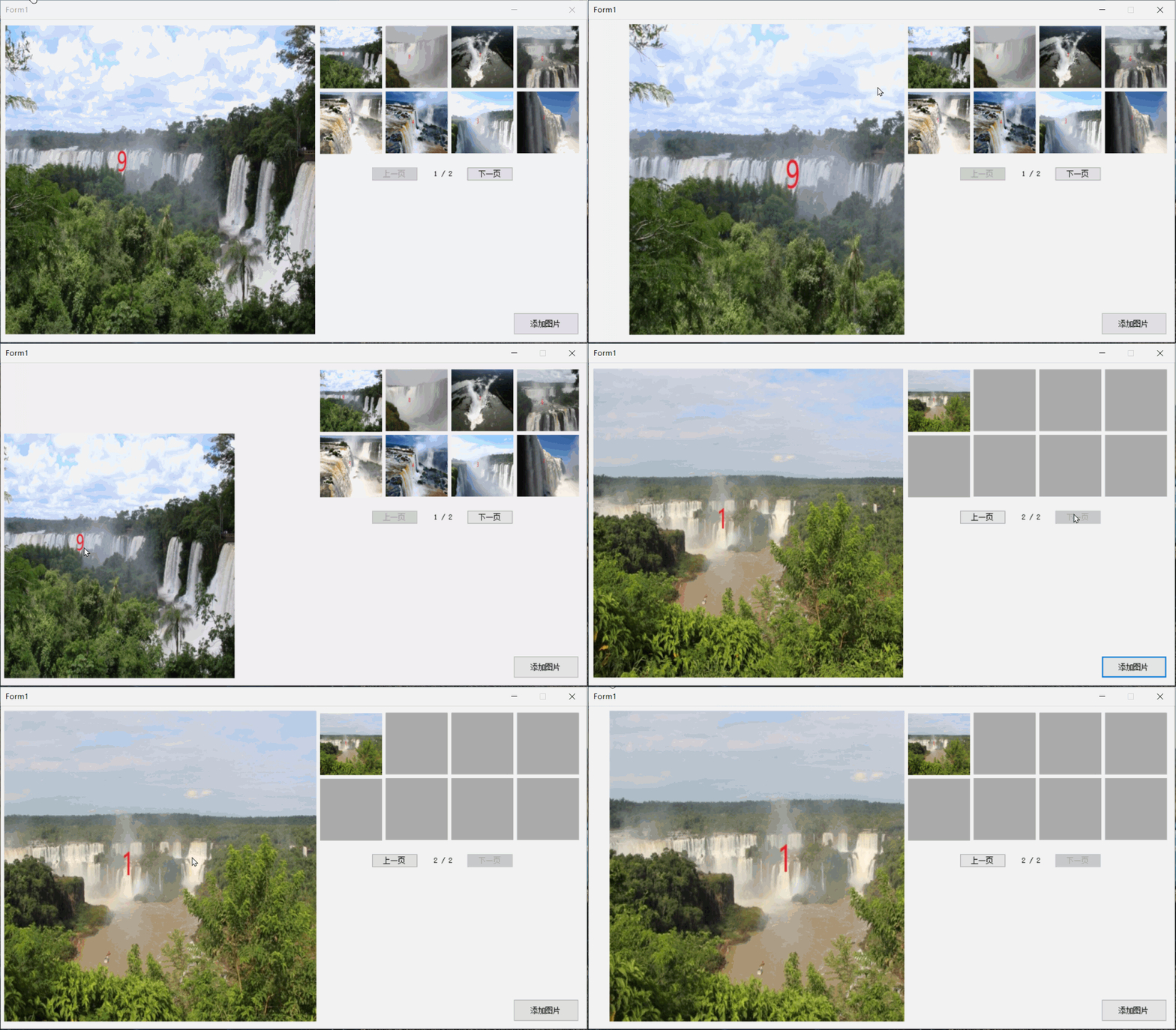
1. Picture enlargement , narrow , Drag and drop functionality
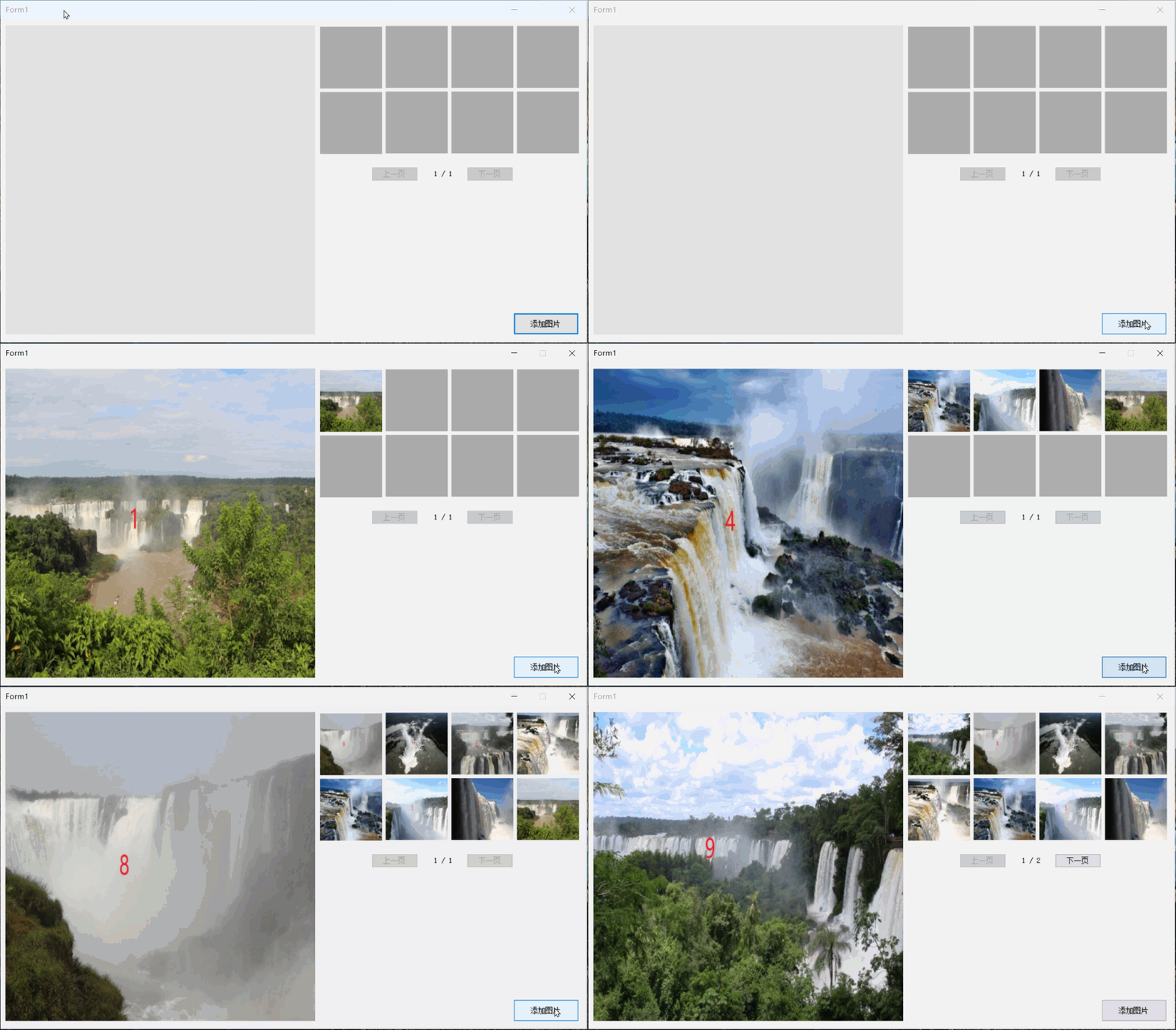
2. Add images , Paging function
One 、 Preface
In many projects, you also need to use the preview image function , As for why add a function of adding pictures , Because some projects , Such as visual related work , You will need a camera to capture pictures , Then it is displayed on the interface , therefore , Pictures are also added one by one , in addition , Paging function , It will be used when the preview position is not enough , So I added it .
Functions of current software
1. Add images
If 8 Preview images are full , Will automatically page , You can click on the previous page , Or the next page .
2. Click the preview image to display the large image
Click on the preview , Previous dragging and zooming will reset automatically
3. The large picture can be dragged , Zoom in , narrow
If the picture is smaller , With this function, you can see more details of the picture .
4. The pictures are arranged in reverse order
Last added picture , Always at the front , This is a little different from the regular paging , Pictured

If you use a positive order , Take a look at this post :
C# Paging calculation Total number of pages 、 Current page data set _ Xiongsiyu's blog -CSDN Blog
Two 、 Code
Create a new one winform project , The interface is as follows :
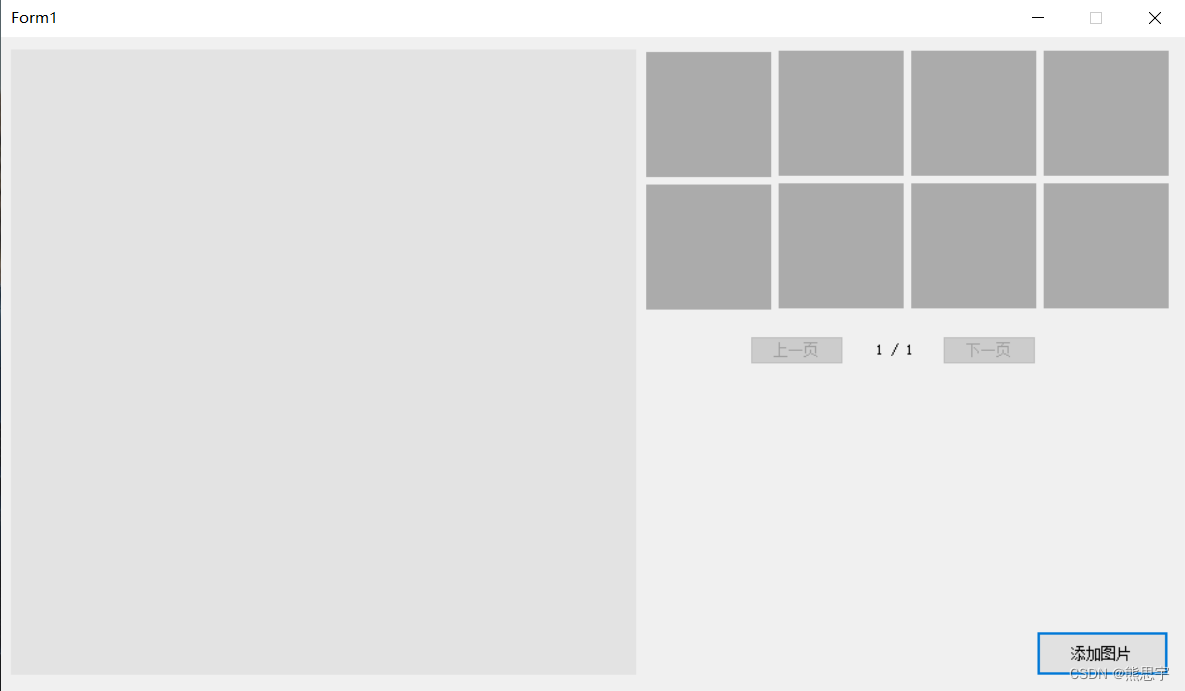
No complicated interface , Both the big picture and the preview picture are used PictureBox Control , The name of the control , Look at the code below , At the bottom of the article , I will attach this Demo Source code , Those who are interested can download it .
using System;
using System.Collections.Generic;
using System.ComponentModel;
using System.Data;
using System.Drawing;
using System.IO;
using System.Linq;
using System.Reflection;
using System.Text;
using System.Threading.Tasks;
using System.Windows.Forms;

namespace  Album features
{
    public partial class Form1 : Form
    {
        public Form1()
        {
            InitializeComponent();
        }

        // Local album list
        private string AlbumPath = Application.StartupPath + "\\Album";
        // Album list
        private List<PictureBox> PictureBoxList = new List<PictureBox>();
        // Picture path list
        private List<string> FilesinfoList = new List<string>();
        // A list of pictures displayed in the album
        private List<Bitmap> BitmapList = new List<Bitmap>();
        //pictureBox1 Initial position
        private Point PicStartPos;
        //pictureBox1 Initial size of
        private Size PicSize;

        // Test use
        int index = -1;
        // The current number of pages
        private int NowPage = 1;
        // Total number of pages
        private int TotalPage = 1;
        // The mouse wheel zooms the incremental value of the picture
        private int ZoomStep = 20;
        // Whether the mouse is dragging
        private bool IsMove = false;
        // Where the mouse clicks
        private Point MouseDownPoint;

        private void Form1_Load(object sender, EventArgs e)
        {
            PicStartPos = pictureBox1.Location;
            PicSize = pictureBox1.Size;
            this.pictureBox1.MouseWheel += new MouseEventHandler(this.pictureBox1_MouseWheel);

            PictureBoxList.Add(PictureBox_ImgList1);
            PictureBoxList.Add(PictureBox_ImgList2);
            PictureBoxList.Add(PictureBox_ImgList3);
            PictureBoxList.Add(PictureBox_ImgList4);
            PictureBoxList.Add(PictureBox_ImgList5);
            PictureBoxList.Add(PictureBox_ImgList6);
            PictureBoxList.Add(PictureBox_ImgList7);
            PictureBoxList.Add(PictureBox_ImgList8);

            // Add a click event for the picture
            for (int i = 0; i < PictureBoxList.Count; i++)
            {
                PictureBoxList[i].Click += new System.EventHandler(PictureBoxClick);
            }

            DirectoryInfo directory = new DirectoryInfo(AlbumPath);
            FileSystemInfo[] filesArray = directory.GetFileSystemInfos();
            foreach (var item in filesArray)
            {
                if (item.Attributes != FileAttributes.Directory)
                {
                    FilesinfoList.Add(item.FullName);
                }
            }
        }

        /// <summary>
        ///  The previous page
        /// </summary>
        /// <param name="sender"></param>
        /// <param name="e"></param>
        private void Button_Back_Click(object sender, EventArgs e)
        {
            if (NowPage <= 1) return;

            NowPage--;
            for (int i = 0; i < PictureBoxList.Count; i++)
            {
                PictureBoxList[i].Image = null;
            }

            List<Bitmap> list = GetPagesBitmap(NowPage);
            for (int i = 0; i < list.Count; i++)
            {
                PictureBoxList[i].Image = list[i];
            }

            pictureBox1.Image = list[0];
            // Set coordinates
            pictureBox1.Location = PicStartPos;
            // Set the width and height of the control
            pictureBox1.Size = PicSize;

            Label_NumberOfPages.Text = string.Format("{0} / {1}", NowPage, TotalPage);
            BackNextButtonType();
        }

        /// <summary>
        ///  The next page
        /// </summary>
        /// <param name="sender"></param>
        /// <param name="e"></param>
        private void Button_Next_Click(object sender, EventArgs e)
        {
            if (NowPage >= TotalPage) return;

            NowPage++;
            for (int i = 0; i < PictureBoxList.Count; i++)
            {
                PictureBoxList[i].Image = null;
            }

            List<Bitmap> list = GetPagesBitmap(NowPage);
            for (int i = 0; i < list.Count; i++)
            {
                PictureBoxList[i].Image = list[i];
            }

            pictureBox1.Image = list[0];
            // Set coordinates
            pictureBox1.Location = PicStartPos;
            // Set the width and height of the control
            pictureBox1.Size = PicSize;

            Label_NumberOfPages.Text = string.Format("{0} / {1}", NowPage, TotalPage);
            BackNextButtonType();
        }

        /// <summary>
        ///  Add images
        /// </summary>
        /// <param name="sender"></param>
        /// <param name="e"></param>
        private void Button_Add_Click(object sender, EventArgs e)
        {
            index++;
            AddPicture(new Bitmap(FilesinfoList[index]));
            if (index >= FilesinfoList.Count - 1)
                index = -1;
        }

        /// <summary>
        ///  Add images
        /// </summary>
        /// <param name="bitmap"></param>
        private void AddPicture(Bitmap bitmap)
        {
            if (bitmap == null) return;

            // Add to picture list
            BitmapList.Add(bitmap);
            // The interface is displayed in the reserved figure
            pictureBox1.Image = bitmap;
            // Set coordinates
            pictureBox1.Location = PicStartPos;
            // Set the width and height of the control
            pictureBox1.Size = PicSize;

            // Calculate the current total number of pages
            int page = BitmapList.Count / PictureBoxList.Count;
            int remainder = BitmapList.Count % PictureBoxList.Count;
            TotalPage = remainder > 0 ? page + 1 : page;
            Label_NumberOfPages.Text = string.Format("{0} / {1}", NowPage, TotalPage);

            BackNextButtonType();

            // Show pictures in reverse order
            List<Bitmap> reverseSort = new List<Bitmap>();
            for (int i = BitmapList.Count - 1; i >= 0; i--)
            {
                reverseSort.Add(BitmapList[i]);
            }
            for (int i = 0; i < reverseSort.Count; i++)
            {
                if (i <= 7)
                    PictureBoxList[i].Image = reverseSort[i];
            }
        }

        /// <summary>
        /// 8 Click event of preview picture
        /// </summary>
        /// <param name="sender"></param>
        /// <param name="e"></param>
        private void PictureBoxClick(Object sender, System.EventArgs e)
        {
            PictureBox pictureBox = (PictureBox)sender;
            if (pictureBox != null && pictureBox.Image != null)
            {
                pictureBox1.Image = pictureBox.Image;
                // Set coordinates
                pictureBox1.Location = PicStartPos;
            }
        }

        /// <summary>
        ///  Get the image corresponding to the index
        /// </summary>
        /// <param name="index"></param>
        /// <returns></returns>
        private List<Bitmap> GetPagesBitmap(int index)
        {
            if (BitmapList.Count <= 0) return null;

            // the number of pages
            int page = BitmapList.Count / PictureBoxList.Count;
            // remainder
            int remainder = BitmapList.Count % PictureBoxList.Count;
            // Total number of pages
            int allPage = remainder > 0 ? page + 1 : page;

            if (index > allPage) return null;

            // Index start point
            int start = (index * PictureBoxList.Count) - PictureBoxList.Count;
            // Index end point
            int end = (index * PictureBoxList.Count) - 1;
            if (end > BitmapList.Count) end = BitmapList.Count - 1;

            List<Bitmap> reverseSort = new List<Bitmap>();
            for (int i = BitmapList.Count - 1; i >= 0; i--)
            {
                reverseSort.Add(BitmapList[i]);
            }

            List<Bitmap> list = new List<Bitmap>();
            for (int i = start; i <= end; i++)
            {
                list.Add(reverseSort[i]);
            }

            if (list.Count > 0)
                return list;
            return null;
        }

        /// <summary>
        ///  The previous page , Next page button status
        /// </summary>
        private void BackNextButtonType()
        {
            Button_Next.Enabled = true;
            Button_Back.Enabled = true;

            // Present page  =  Total number of pages
            if (NowPage == TotalPage)
                Button_Next.Enabled = false;
            // Present page   Less than or equal to  1
            if (NowPage <= 1)
                Button_Back.Enabled = false;
        }


        private void pictureBox1_MouseDown(object sender, MouseEventArgs e)
        {
            if (pictureBox1.Image == null) return;

            if (e.Button == MouseButtons.Left)
            {
                MouseDownPoint.X = Cursor.Position.X; // Record the position when the left mouse button is pressed
                MouseDownPoint.Y = Cursor.Position.Y;
                IsMove = true;
                pictureBox1.Focus(); // Mouse wheel events ( When zooming ) need picturebox There's a focus
            }
        }

        private void pictureBox1_MouseUp(object sender, MouseEventArgs e)
        {
            if (e.Button == MouseButtons.Left)
            {
                IsMove = false;
            }
        }

        private void pictureBox1_MouseMove(object sender, MouseEventArgs e)
        {
            if (pictureBox1.Image == null) return;
            pictureBox1.Focus(); // Mouse in picturebox There is focus only when you go up , Now you can zoom
            if (IsMove)
            {
                int x, y;   // new pictureBox1.Location(x,y)
                int moveX, moveY; //X Direction ,Y Direction shift size .
                moveX = Cursor.Position.X - MouseDownPoint.X;
                moveY = Cursor.Position.Y - MouseDownPoint.Y;
                x = pictureBox1.Location.X + moveX;
                y = pictureBox1.Location.Y + moveY;
                pictureBox1.Location = new Point(x, y);
                MouseDownPoint.X = Cursor.Position.X;
                MouseDownPoint.Y = Cursor.Position.Y;
            }
        }

        private void pictureBox1_MouseWheel(object sender, MouseEventArgs e)
        {
            if (pictureBox1.Image == null) return;

            PictureBox pbox = pictureBox1;
            int x = e.Location.X;
            int y = e.Location.Y;
            int ow = pbox.Width;
            int oh = pbox.Height;
            int VX, VY;  // Displacement vector due to scaling
            if (e.Delta > 0) // Zoom in
            {
                // The first 1 Step
                pbox.Width += ZoomStep;
                pbox.Height += ZoomStep;
                // The first 2 Step
                PropertyInfo pInfo = pbox.GetType().GetProperty("ImageRectangle", BindingFlags.Instance | BindingFlags.NonPublic);
                Rectangle rect = (Rectangle)pInfo.GetValue(pbox, null);
                // The first 3 Step
                pbox.Width = rect.Width;
                pbox.Height = rect.Height;

                //Console.WriteLine(string.Format(" wide :{0}, high :{1}",pbox.Width,pbox.Height));
            }
            if (e.Delta < 0) // narrow
            {
                // Prevent it from shrinking to a negative value
                if (pbox.Width < 300)
                    return;

                pbox.Width -= ZoomStep;
                pbox.Height -= ZoomStep;
                PropertyInfo pInfo = pbox.GetType().GetProperty("ImageRectangle", BindingFlags.Instance |
                 BindingFlags.NonPublic);
                Rectangle rect = (Rectangle)pInfo.GetValue(pbox, null);
                pbox.Width = rect.Width;
                pbox.Height = rect.Height;
            }

            // The first 4 Step , Find the displacement caused by scaling , Make compensation , Achieve the effect of anchor scaling
            VX = (int)((double)x * (ow - pbox.Width) / ow);
            VY = (int)((double)y * (oh - pbox.Height) / oh);
            pbox.Location = new Point(pbox.Location.X + VX, pbox.Location.Y + VY);
        }


    }
}
In the code , Mouse zoom , Drag and drop functionality , You need to add the corresponding event in the control , Otherwise, there will be no effect

After operation , The effect is as shown at the beginning of the article , I'd rather not add pictures to this position
Source code : Click to download
end
If this post is useful to you , welcome Focus on + give the thumbs-up + Leaving a message. , thank you
end
边栏推荐
- Is polardbx PG or MySQL?
- Neuron+ekuiper realizes data collection, cleaning and anti control of industrial Internet of things
- JasperReport报表生成工具的基本使用和常见问题
- 数据库中如何使用SQL进行修改&amp;删除
- 程序员要不要选择软件人才外包公司?
- [introduction to postgraduate entrance examination] analysis of postgraduate entrance examination data of Cyberspace Security Major of Beijing Jiaotong University from 2018 to 2022
- 机器学习之随机森林
- MadCap Flare 2022,语言或格式的文档
- 什么是Bout?
- A simple scientific research secret
猜你喜欢

Maui uses Masa blazor component library

芯片硅片与流片技术

Should programmers choose software talent outsourcing companies?

基于SSH框架甜品商城管理系统【源码+数据库】
How MySQL enables multiple auto incrementing columns in a table

Cve - 2022 - 22965 Resume

VR全景拍摄,打破传统宣传雁过不留痕的僵局
程序员要不要选择软件人才外包公司?

Flink status management

一文搞懂开放源码软件(OSS)质量保证

随机推荐
CVE-2022-22965複現
浅析Redis 切片集群的数据倾斜问题
How to use SQL to modify in the database & delete
Oceanbase database helps the ideal automobile intelligent production line to realize automatic recovery within 30 seconds
Sikulix选取相对位置的图片(进阶版)
3DMAX modeling notes (I): introducing 3DMAX and creating the first model Hello World
Do you know the scope and process of software project acceptance testing?
Vcip2021: super resolution using decoded information
Cve-2022-22965 reappearance
开源SPL重新定义OLAP Server
融云:让银行轻松上“云”
Kukai TV ADB
《Kubernetes监控篇:Grafana通过自动化方式添加datasource和dashboard》
Seven cattle cloud upload picture
位置编码(PE)是如何在Transformers中发挥作用的
VR全景拍摄,打破传统宣传雁过不留痕的僵局
Shan Zhiguang, chairman of BSN Development Alliance: DDC can provide the underlying support for the development of China's meta universe industry
11 方法引用和构造器应用
Nine good programming habits for 10 years
JS高级程序设计第 4 版:迭代器的学习