当前位置:网站首页>Boutique enterprise class powerbi application pipeline deployment
Boutique enterprise class powerbi application pipeline deployment
2022-06-25 01:15:00 【Powerbi white tea】

We are in the process of implementing the project , Process has always been a very important concept .

For the sake of data confidentiality , The data we came into contact with during the development phase , It is often the data of the development environment . The data in the development environment is often too small , Or no real data , The data is mainly simulation , This can ensure that the development progress will not be affected , It can also keep the company's data confidential .
When the development phase is over , You need to switch the environment to the test environment , To test data and function points . The data of the test environment is compared with the development environment , Too much data , Data is usually historical data or some real data , Dimension relationship and data integrity are close to real data .
When the test is over , Will be switched to the production environment and put into use .
PowerBIServers Pipeline deployment
In general, the processing method of enterprises is to divide the environment in the data warehouse , and PowerBI On the cloud Servers The service introduces the pipeline deployment function .
So we can create parameters , To achieve rapid environment switching .
Let's first understand the service conditions ( Meet one of them ):
1. Your organization already has Power BI Premium subscribe , And you have the authority ;
2. You have Power BI Premium Per User (PPU) subscribe .
It is not difficult for us to see from the conditions of use , The pipeline deployment function is for enterprise applications PowerBI Prepared ;
If we want to learn, we can use a free account PPU Try to understand the overall operation process .

Next , We begin the overall process operation of pipeline deployment .
Data preparation :

In the white tea machine SQL Servers in , There is a name Dev、Test、Live Three databases of .
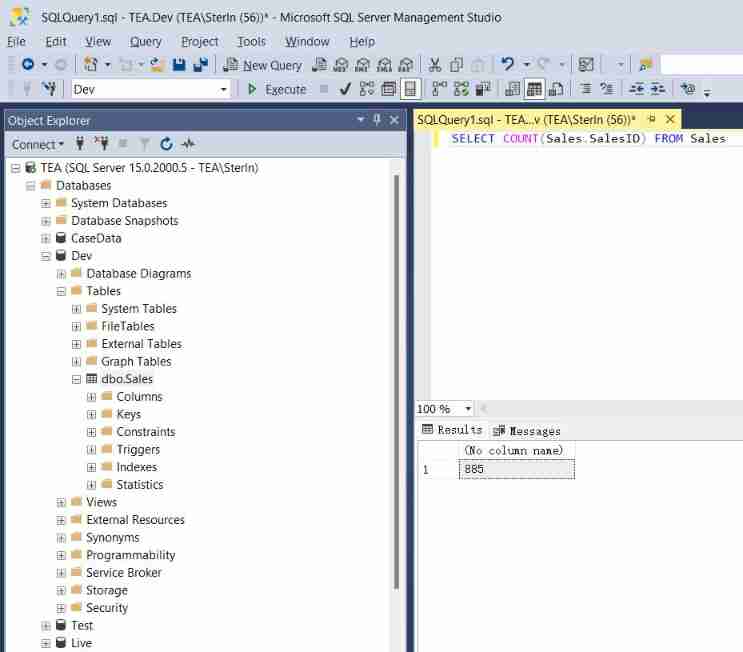


From the above results we can see that , The data table structure of the three databases is consistent , All single sheets Sales surface , There are only differences in the data magnitude .
New parameter :
open PowerBI, Enter into PowerQuery Interface .
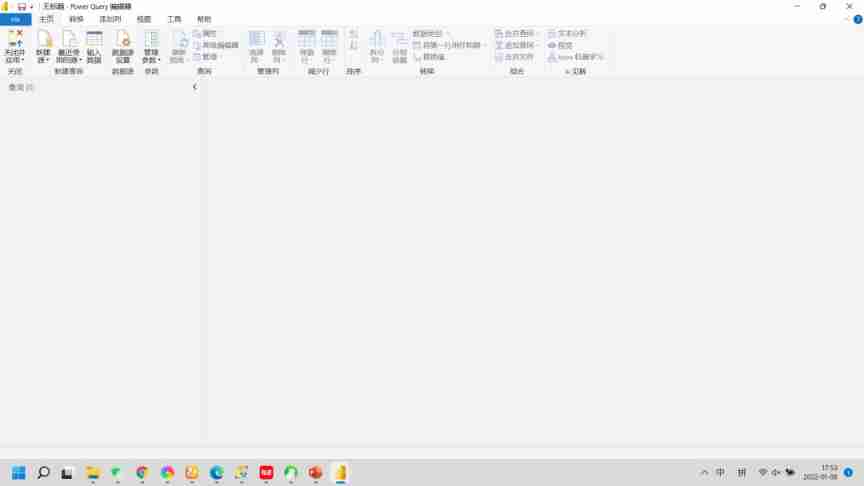
Switch to “ View ” Interface , open “ Always allow ”.

Back to “ Home page ” Interface , choice “ Management parameters ” Below “ New parameter ”.

Name the parameter “Source”, The type is set to “ Text ”, The current value is set to “Tea”.

Continue adding parameters “Database”, Set the current value to “Dev”.

Select close and apply .

Connect to database :
Open get data , choice SQL Servers Data connection .

Here, change the server and database types to the two parameters we just set .

Select... In the database Sales surface .

New measure "Rows", Put it in the card diagram and let's have a look .
Rows =
COUNTROWS ( 'Sales' )

Come here , Our preparations are finished .
Time relation , White tea doesn't make too complicated reports for demonstration . We mainly understand the overall operation of pipeline deployment .
Create pipes :
Sign in PowerBI account number , Open my workspace panel , Select Create workspace .

Name it “ Development ”, License mode selection “Premium Per User”.
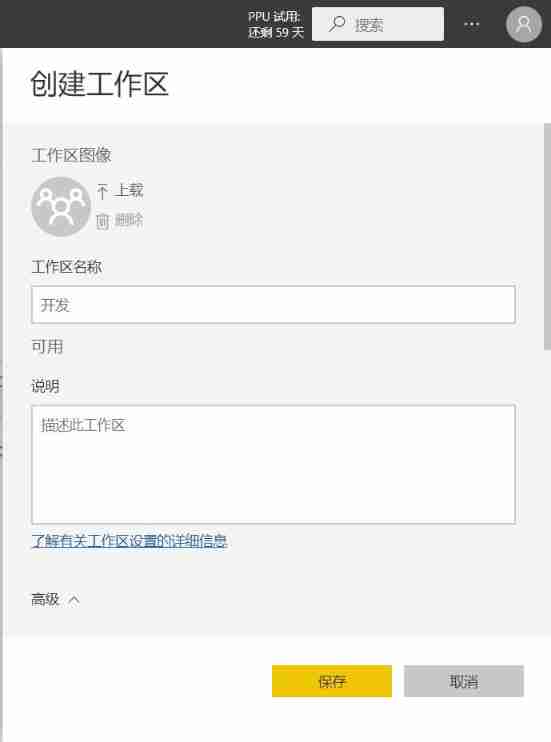

After the workspace is created , We can select... In the current workspace “ Create pipes ”.

Name it “ White tea ”, Choose to create .

Assign this workspace as “ Development ”.

In this case , Our first development pipeline was created .

Follow the steps above , We create... In turn “ test ”、“ production ” Environmental Science .

thus , Our pipeline is created .
Report deployment :
Take what we just had PowerBI file , Name it “Test”, Publish to the development environment .


Pipeline deployment :
stay “ Development ” In the pipeline , We can see the report file just uploaded , choice “ View in the pipeline ”.

Choose to deploy to “ test ” The Conduit .

choice “ test ” Pipeline deployment settings .

Choose a dataset , Enter the setting interface , We can see that there are data source rule settings and parameter rule settings , Here we choose “ Parameter rule settings ”.
notes : The data source rule settings are not recommended , It is convenient to use without parameters .
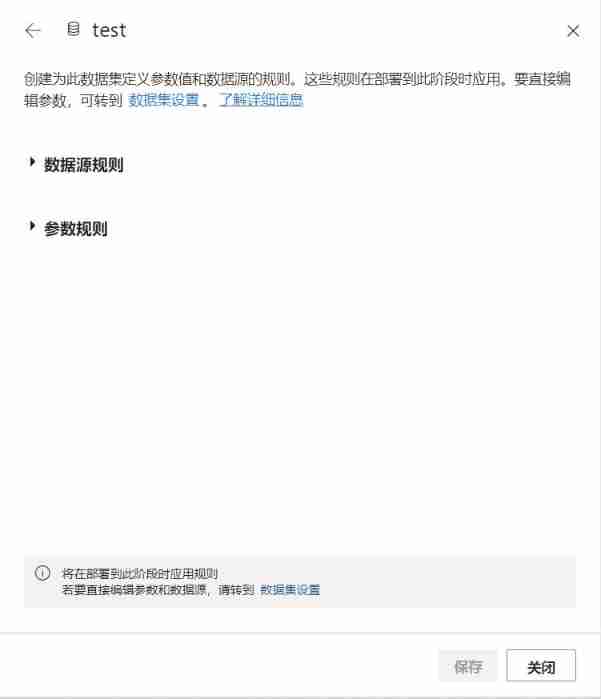
Select Add Rule , take “Database” Parameter set to Test.

According to the above operation , We deployed it to “ production ” Pipe and set .
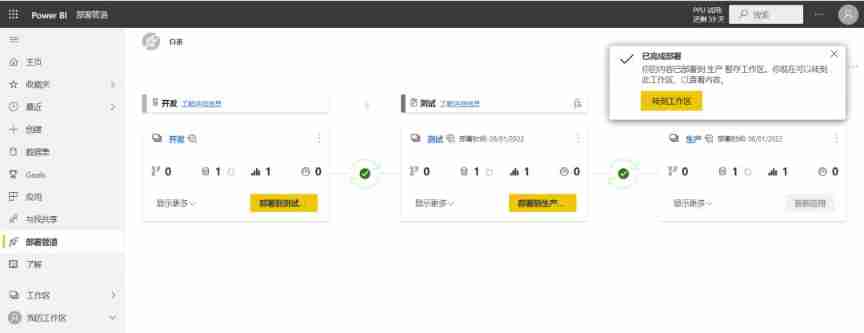

thus , The overall process of pipeline deployment has been completed , Let's go into three environments to view the report data .


It can be seen from the overall valuation that , The difference between the data is consistent with the results we checked in the data warehouse .
matters needing attention :
White tea is used by this machine SQL Servers It needs to be used with a gateway , The specific operation will not be repeated here , Friends can try it by themselves .


This is white tea , One PowerBI Beginners .
边栏推荐
- 欢迎来到联想智能大屏的新世界
- yasea apk 下载 镜像
- vb学习什么[通俗易懂]
- Bi-sql like
- Bi SQL constraints
- Super detailed description and derivation of convolution and deconvolution (deconvolution is also called transpose convolution and fractional step convolution)
- Convolution and transpose convolution
- 利用 Redis 的 sorted set 做每周热评的功能
- Bi-sql - join
- Scala responsibility chain pattern
猜你喜欢

重磅:国产IDE发布,由阿里研发,完全开源!(高性能+高定制性)

Text editor for QT project practice - Episode 10

Zuckerberg demonstrated four VR head display prototypes, and meta revealed the "family" of metauniverse

利用 Redis 的 sorted set 做每周热评的功能

2022 crane driver (limited to bridge crane) examination question bank simulated examination platform operation
Use redis' sorted set to make weekly hot Reviews

108 pages (40000 words) proposal for future apartment intelligent design platform project (version 2022)

15. several methods of thread synchronization

汇编语言(2)基础知识-debug

Première application de l'informatique quantique à la modélisation des flux de puissance dans les systèmes énergétiques à l'Université technique danoise
随机推荐
Why does Dell always refuse to push the ultra-thin commercial notebook to the extreme?
The optimism about technology is making Dell achieve more than expected
音频PCM数据计算声音分贝值,实现简单VAD功能
ContentResolver,拿到手机短信内容
bindservice方法实现音乐播放暂停
Contentresolver, get the SMS content
腾讯云WeCity丨产业联合 协同创新 共贺新春!
Introduction to smart contract security audit delegatecall (2)
Scala responsibility chain pattern
Scala sample class
Powerbi - for you who are learning
Linux64Bit下安装MySQL5.6-不能修改root密码
Distinguish between i++ and ++i seconds
4 years of working experience, and you can't tell the five communication modes between multithreads. Can you believe it?
重磅:国产IDE发布,由阿里研发,完全开源!(高性能+高定制性)
Scala trait construction mechanism
Cobalt strike installation tutorial
Preliminary understanding of qtoolbutton
梦想CAD云图与GIS结合演示
Go语言运算符(第8课下)