当前位置:网站首页>Power bi - Comprehensive Application
Power bi - Comprehensive Application
2022-07-23 13:43:00 【Xiao Chen Bu eats people】
Comprehensive application
0. Effect display
All the previous explanations are based on each module , Make readers understand bi The overall understanding of is a little vague , Here is just a bi report form , Just for the overall explanation bi Application .
First , See the final demo :
Power BI Financial statements
Unable to watch, please visit the source video directly
This is a relatively simple report , The so-called simplicity means that there is not much data , It can be realized without complex modeling . Although this example is simple , But it also involves bi Many functions in , Including data processing 、 Data visualization 、 Report design, etc , And there are more knowledge points , We are in application , The following knowledge will be used :
- bi get data (python Script )
- frequently-used DAX Use of functions
- Construction and management of metrics
- Built in chart 、 Custom chart application
- Dynamic interaction
- Report design and beautification
1. Data preparation
As the saying goes ‘ one can't make bricks without straw ’, Since we are going to make statements , You have to have data first , So we first get and process data .
About BI Load data and PQ Knowledge of data processing , If you don't know, you can refer to the previous article Power BI---- Data processing , Only more detailed things are explained here .
Building auxiliary tables
The raw data has been loaded , But it's not enough for us to finish the design , For some data , We need to create our own data , Like in the picture below KPI Slicer data :

Build the above table DAX The formula is as follows :
Proportion index table = DATATABLE(“KPI”,STRING,{ {“ Promotion fee ”},{“ profits ”},{“ Platform fee ”},{“ Promotion fee ”},{“ Cost of goods ”},{“ The freight ”},{“ refund ”},{“ Destruction cost ”}})
explain :1. function DATATABLE, Build a table
2. The first parameter : Is the column name
3. The second parameter : data type ( The type of data in this column to be built )
4. If you build multiple columns , Then write the column name and type directly after
5.{} Inside is the data , The data in the same row is in a {} in , All the data is in {}, That's two floors
Build parameters
A lot of times , Static charts cannot meet our needs , Dynamic analysis also needs to be introduced , Observe the impact on the analysis results by adjusting the increase or decrease of a dimension , This is what Power BI Role of parameters in .
stay PowerBI Desktop in , stay “ modeling ” Type selection card , Click on “ New parameter ”, The details are as follows: :

The new parameter will appear in the report in the form of slicer , The style is as follows , Its essence is also a table , You can view :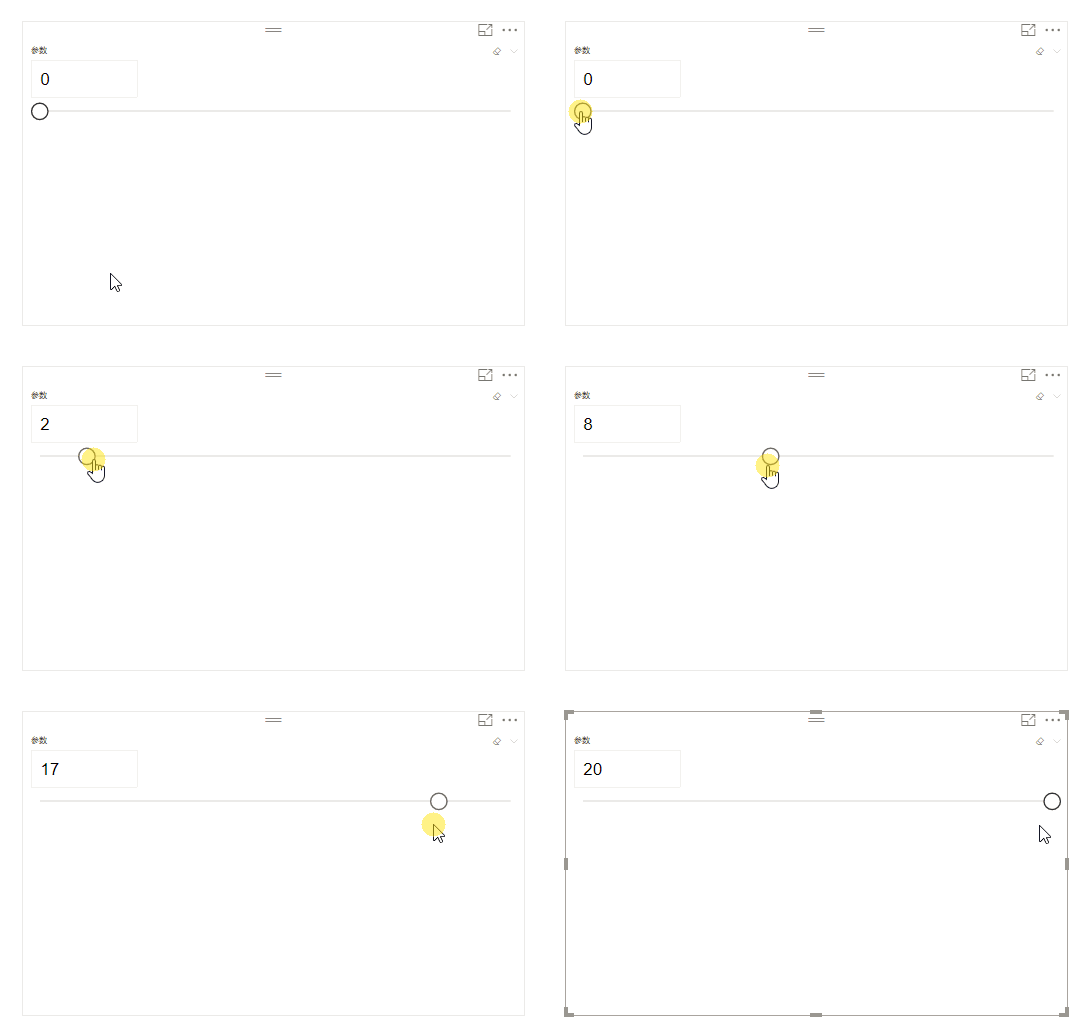
2. Index calculation
When the data is ready , Start building the required metrics , Measure creation and DAX Basic knowledge of view the previous article ,DAX Explain ,
Here are just some important index formulas .
Sort 、TOPN
TOP N It is often used in daily reports , The effect is as follows , It's given later TOP N Implementation method .
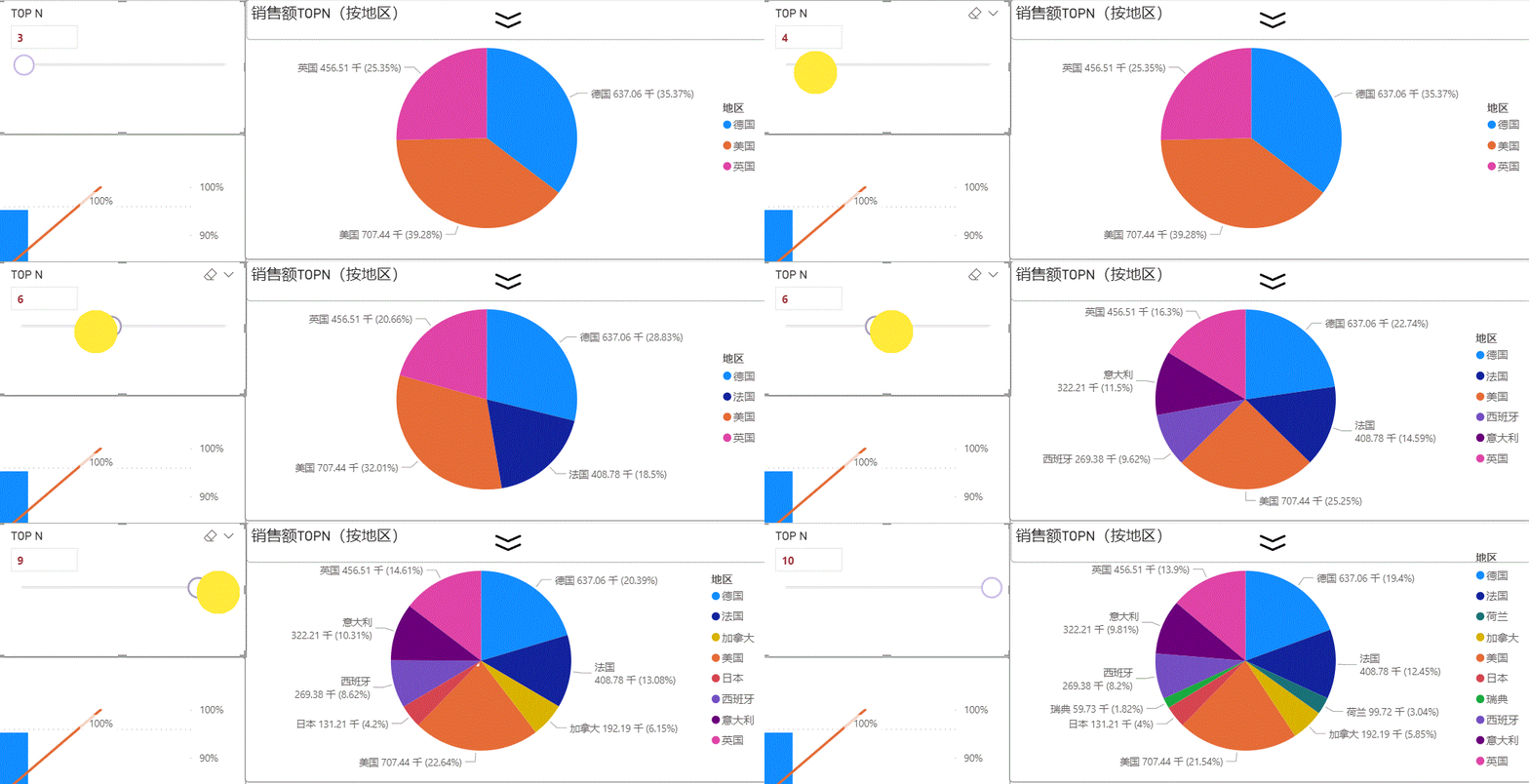
Realization TOP N Measure construction
top_ region = CALCULATE([ Total sales ],FILTER(VALUES(‘cj_bysum’[ region ]),[ Regional rankings ]<=[ Parameters value ]))
Regional rankings = RANKX(all(cj_bysum[ region ]),[ Total sales ])
explain :1. The first measure is created top N, The second measure creates an auxiliary ,
2.rankx function : The first parameter is the table , The second parameter is the expression . Here we calculate the sales ranking of each region in all regions
3.FILTER function : Filter out the regions whose ranking is less than the parameter value
4.CALCULATE function : Combine the selected areas , Show sales , achieve top N The effect of
Month on month comparison of discontinuous time
Speaking of month on month data , Many people think of intelligent functions at the first time DATEADD, But there is a defect in changing the function , When time is discontinuous , The calculation will be wrong , Very clever , My sales data is staff turnover and so on , Result in data time discontinuity , How to calculate the month on month ratio ? Then look at the following formula :
explain :
1. Profits in recent months , It's a good calculation , It is the profit of the month with the largest date
2. Push forward for a month : Two are used here filter nesting , Go out the maximum value of the remaining months of the original maximum month , In this way, no matter continuous or discontinuous
3.iferror function : When an error occurs , use 0 Instead of
SWITCH The realization of one figure and multiple indicators
To save report space , Make one page show as much information as possible , The following methods are often used , Click the indicator you want to view through the slicer , Show multiple indicators in the same chart position .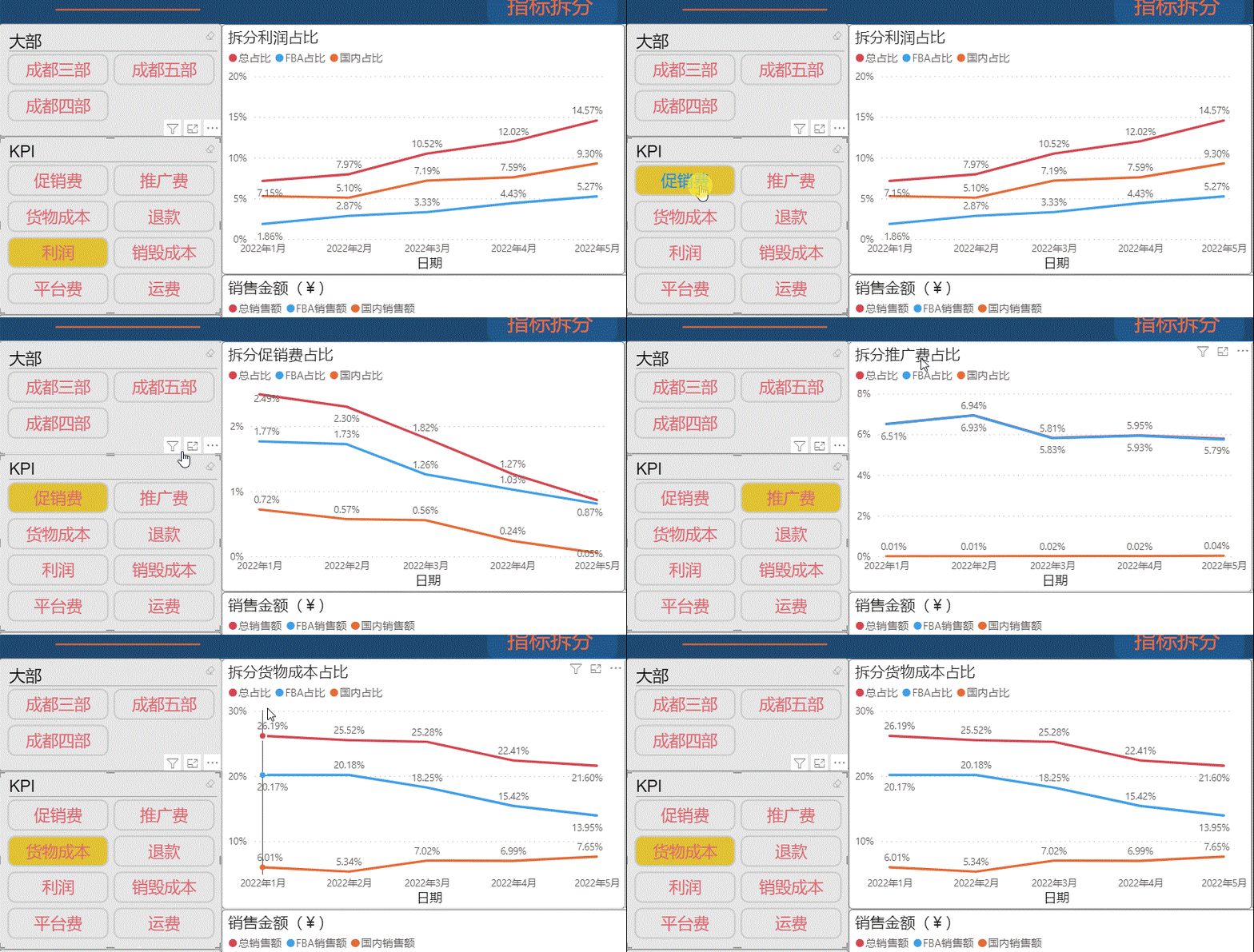
The above effect is used SWITCH Function implementation , This function acts as a switch , When the conditions are met, turn on a light , The code is as follows :
explain :
1.SELECTEDVALUE(‘ Proportion index table ’[KPI]): Select the previously built kpi The value of the card cutter made by the table
2.“ Promotion fee ”,[FBA Proportion of promotional expenses ]: When slicer selects promotion cost , call [FBA Proportion of promotional expenses ] measurements
3. Other similar above , The selected values are different , The data returned is also different , Achieve the above effect
3. Report design and visualization
After the first two parts , It's the design of reports and the beautification of charts , Beautifying this varies from person to person , Some people like simplicity, others like fancy , Here are just a few skill based designs .
Button 、 Bookmarks realize page Jump
From the top video , You can see , Whether it's the homepage jumping to another page , Or by clicking on the navigation bar above , Can achieve page Jump , This effect is achieved through buttons and bookmarks . Here are the specific operations :
- Bookmark the page you want
- Place components that can jump ( Insert the last three in the element options of the tab )
- Click on the change component to display the attribute setting bar
- Place actions in the action options ( Here are bookmarks )

Fold slicer , Save a space
About this part of the content , The previous article has explained , No more details here , If necessary, please refer to the previous settings .
BI Use of slicer in
Here is an explanation of one of the things when creating , as follows :
- First place the visual objects you need ( Filter , Unfolded pattern, etc ) Then hide other objects except the expand button , Add bookmarks
- To make unfolding and folding more natural , It is best to use the same pattern for both patterns ( One is the flip of the other ), And put it in the same position
- The two bookmarks set must be checked out , Otherwise, the filter results will change after expanding or collapsing
If you can't set , Look at the following two pictures , Look at the layer changes and bookmark changes when expanding and hiding :
When it's hidden :
When it unfolds :
Data bar style of table
stay BI In the report , Tables are more or less used , Tables are actually excel Table styles in , alike , The table here can also be set and excel In the same way , Various complex and beautiful styles , as follows :


The above style is just an example , You can set a more suitable style , Here's the demo , The implementation method is as follows :
- Click on the form , Select the properties of the visual object , There is a cell element , There's a background 、 typeface 、 Data bar 、 Charts and other options , Choose settings according to your needs , as follows :

- Take the icon as an example , You can choose to set based on rules or field values , Choose rules here , Set greater than 0 Give an icon , be equal to 0 And other icons less than zero .

Background of the report
Nice homepage background , It can make the report more beautiful , So here is the setting of the background .
Above picture , It's the place to set the background , The matching mode generally selects the matching degree , More natural . Here is a concept of canvas , Separate it from the wallpaper , Wallpaper is the background of the whole interface , Canvas is the area where you can place visual objects , If not specially adjusted , Canvas will be smaller than wallpaper .
边栏推荐
- Jupyter notebook add existing virtual environment
- Remote editing and debugging with vscode
- 机器学习,吴恩达逻辑回归
- MySQL index transaction & JDBC programming
- Google Play应用商店可能会删除应用权限概述 转而使用新的数据安全信息组合
- 在虚拟环境下使用pip时默认使用系统环境的pip该怎么办
- Ros2 self study notes: URDF robot modeling
- 反常积分的审敛
- Special topic of MIMO Radar (0) - General Chapter
- Method of entering mathematical formula into mark down document
猜你喜欢

Introduction to radar part vii 4 SAR system design

Optimising a 3D convolutional neural network for head and neck computed tomography segmentation with

SparkSQL设计及入门,220722,

JVM detailed parsing

云解决方案,为什么选择 AMD EPYC?

kubernetes 的这几种存储卷,别再傻傻分不清了

接口测试-简单的接口自动化测试Demo

【深入浅出玩转FPGA学习10------简单的Testbench设计】

图形管线(一)后处理阶段 alpha测试 模版测试 深度测试 混合

QT creator.Pro file adds the corresponding library according to the kit
随机推荐
Smart city infrastructure management based on bim+3dgis
Why choose AMD epyc for cloud solutions?
决策树详解
PHP gets the current timestamp three bit MS MS timestamp
Introduction to radar part vii 2 imaging method
同花顺开户风险性大吗,安全吗?
Google play app store may delete the overview of APP permissions and use a new combination of data security information
Problem solving: script file 'scripts\pip script py‘ is not present.
Successful joint commissioning of Vientiane Aoke and CoDeSys Technology
Wechat applet -- dynamically set the navigation bar color
4D antenna array layout design
Running matlab program on GPU
Shell运算符、$((运算式))” 或 “$[运算式]、expr方法、条件判断、test condition、[ condition ]、两个整数之间比较、按照文件权限进行判断、按照文件类型进行判断
关于#redis#的问题:Redis设置数据持久化之后还是会有丢失数据的风险
【JS高级】正则入门基础—关于你想知道的正则表达式_01
Point target simulation of SAR imaging (II) -- matlab simulation
【STM32】串口通信基础知识
Jenkins continuous integration error stderr: fatal: unsafe repository ('/home/water/water' is owned by someone else)
[jzof] 08 next node of binary tree
SeekTiger的Okaleido有大动作,生态通证STI会借此爆发?