当前位置:网站首页>Rancher 2.6 new monitoring QuickStart
Rancher 2.6 new monitoring QuickStart
2022-06-23 11:14:00 【InfoQ】
General Statement
- PrometheusRules: Define alarm rules
- Alert Managers:Altermanager start-up CRD, be used for Altermanager Boot copy
- Receivers: Configure alarm receiving media CRD
- Routers: Match the alarm rules with the alarm media
- ServiceMonitor: Definition Prometheus Address of the collected monitoring indicators
- Pod Monitor: A more granular pair POD monitor

Configuration and use
Enable monitoring


remoteRead:
 - url: http://192.168.0.7:8086/api/v1/prom/read?db=prometheusremoteWrite:
 - url: http://192.168.0.7:8086/api/v1/prom/write?db=prometheus
 podLabels:
 jobLabel: node-exporter
 resources:
 limits:
 cpu: 200m
 memory: 150Mi
 requests:
 cpu: 100m
 memory: 30Mi
- Altermanager: Enter the alarm information view page
- Grafana: View the monitoring data icon
- Prometheus Graph:Prometheus Expression execution page
- Prometheus Rules: see Prometheus Configured alarm expression page
- Prometheus Targets: Monitoring and data collection


- cpu usage
- Cluster node load
- Memory usage
- Disk usage
- disk IO
- Network Traffic
- Network IO
- ApiServer Request rate
- Controller-Manager Queue depth
- POD scheduler Scheduling status
- Ingress-Controller The number of connections
- Leader Election status
- Leader The number of elections
- GRPC Client Traffic
- ETCD Data usage capacity
- Active Streams
- RPC rate
- Disk data synchronization time

Configure custom monitoring indicators
- utilize JMX exporter, stay Java Start a small Http server
- To configure Prometheus Grab that Http server Provided metrics
- To configure Grafana Connect Prometheus, To configure Dashboard
mkdir -p /Dockerfile/jmx-exporter/https://github.com/prometheus/jmx_exporter
https://repo1.maven.org/maven2/io/prometheus/jmx/jmx_prometheus_javaagent/0.12.0/jmx_prometheus_javaagent-0.12.0.jar---
rules:
- pattern: ".*"FROM tomcat
COPY ./jmx_prometheus_javaagent-0.12.0.jar /jmx_prometheus_javaagent-0.12.0.jar
ENV CATALINA_OPTS="-Xms64m -Xmx128m -javaagent:/jmx-exporter/jmx_prometheus_javaagent-0.12.0.jar=6060:/jmx-exporter/simple-config.yml"docker build -t tomcat:v1.0 .
docker run -itd -p 8080:8080 -p 6060:6060 tomcat:v1.0

kubectl label svc tomcat app=tomcatapiVersion: monitoring.coreos.com/v1
kind: ServiceMonitor
metadata:
name: tomcat-app namespace: defaultspec:
endpoints:
- port: exporter
selector:
matchLabels:
app: tomcat


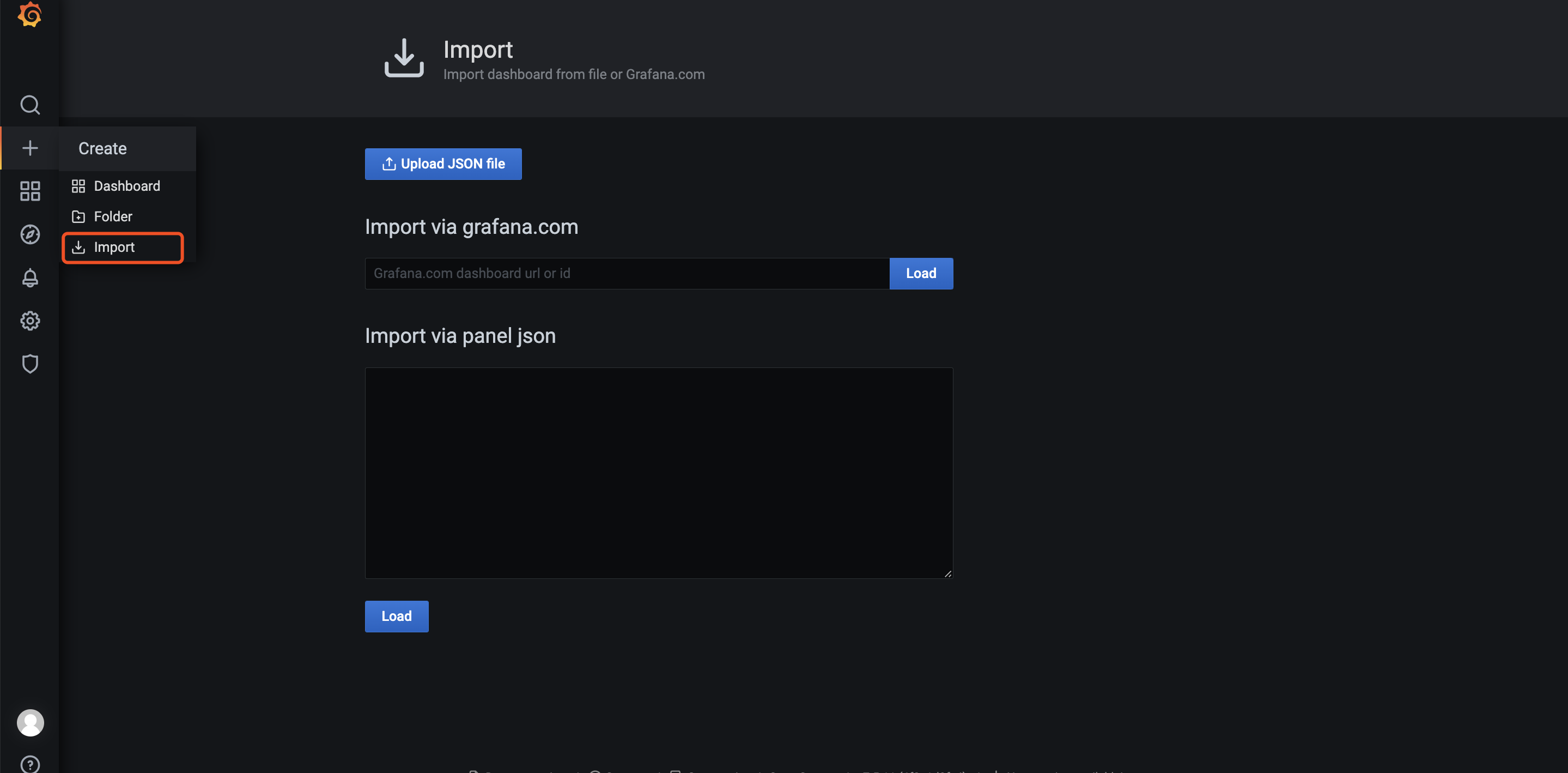

Configure alarms


- group_by: Used to configure alarm groups , Achieve alarm suppression effect , The same group The alarms of will only be aggregated and sent once . for example host01 The database is running on , Then the corresponding alarm includes host down、mysql down. They are configured in a group Inside , So if host down The corresponding mysql It must be down 了 , Well, because they are configured in a group in , therefore host down and mysql down The alarms will be aggregated and sent out .
- group_wait: New AlterGroup How long to wait before the first alarm is triggered .
- group_interval:AlterGroup Different alarm triggering intervals generated in .
- repeat_interval:AlterGroup If the alarm is the same all the time ,Altermanager In order to avoid long-term interference , Waiting time for alarm de duplication .

Custom alarm
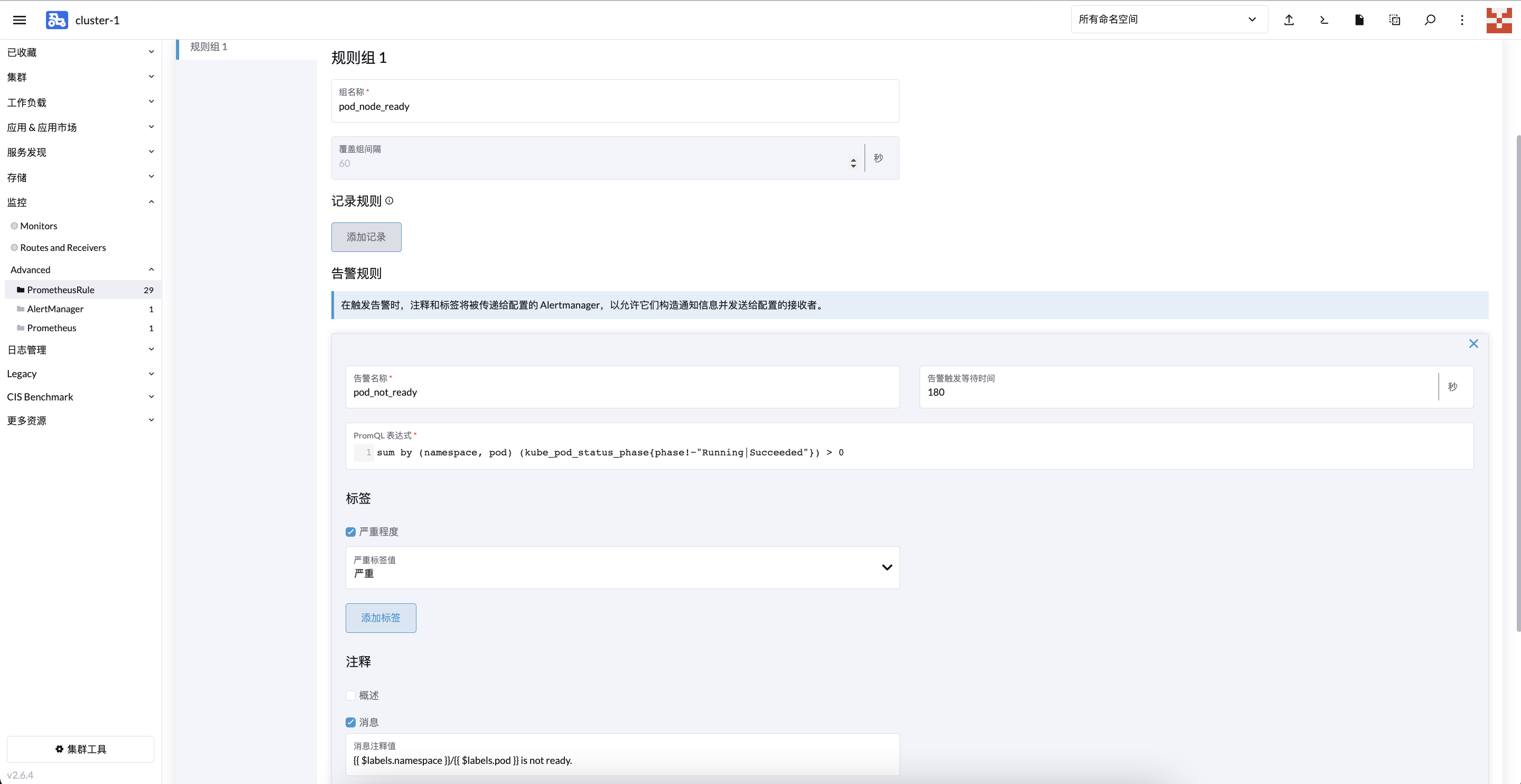
apiVersion: monitoring.coreos.com/v1
kind: PrometheusRule
metadata:
 name: podmonitor
 namespace: cattle-monitoring-system
spec:
 groups:
 - name: pod_node_ready
 rules:
 - alert: pod_not_ready
 annotations:
 message: '{{ $labels.namespace }}/{{ $labels.pod }} is not ready.'
 expr: 'sum by (namespace, pod) (kube_pod_status_phase{phase!~"Running|Succeeded"})
 > 0 '
 for: 180s
 labels:
severity: serious - for: Indicates the duration
- message: Indicates the information in the alarm notification
- label.severity: Indicates the alarm level
- expr: Index get expression


边栏推荐
- Stockage d'images - référence
- Noi OJ 1.3 17: calculating triangle area C language
- DevEco Device Tool 助力OpenHarmony设备开发
- Noi OJ 1.3 13: reverse output of a three digit C language
- Unity technical manual - limit velocity over lifetime sub module and inherit velocity sub module
- Rancher 2.6 全新 Monitoring 快速入门
- flutter系列之:flutter中的Wrap
- ESP32-CAM、ESP8266、WIFI、蓝牙、单片机、热点创建嵌入式DNS服务器
- "Internet +" contest topic hot docking | I figure to understand 38 propositions of Baidu
- Large homework collection
猜你喜欢

What does NFTs, Web3 and metauniverse mean for digital marketing?

Interview Manual of social recruitment Tencent high P (Senior Product Manager)

Picture storage -- Reference
JVM easy start-02
The simplest DIY serial port Bluetooth hardware implementation scheme

最简单DIY基于STM32F407探索者开发板的MPU6050陀螺仪姿态控制舵机程序

Solve the problem of invalid audio autoplay

Esp32-cam high cost performance temperature and humidity monitoring system

L'outil de périphérique deveco aide au développement de périphériques openharmony

技术创造价值,手把手教你薅羊毛篇
随机推荐
Noi OJ 1.2 integer data type storage space size
Deveco device tool helps openharmony device development
【黄金分割点】与【斐波那契数列】
File has not been synchronized when NFS is mounted
NFS挂载时一直没有同步文件
PHP reflection class use
Noi OJ 1.4 05: integer size comparison C language
Analysis of LinkedList source code
Torch weight to mindspore
Parity of UART
The simplest DIY serial port Bluetooth hardware implementation scheme
ESP32-CAM高性价比温湿度监控系统配网与上网方案设计与实现
NOI OJ 1.2 10:Hello, World! Size of C language
开发增效利器—2022年VsCode插件分享
SPI与IIC异同
程序中创建一个子进程,然后父子进程各自独自运行,父进程在标准输入设备上读入小写字母,写入管道。子进程从管道读取字符并转化为大写字母。读到x结束
Opencloudos uses snap to install NET 6
实战监听Eureka client的缓存更新
Force buckle 1319 Number of connected network operations
Simplest DIY steel patriot machine gun controller based on Bluetooth, 51 MCU and steering gear