当前位置:网站首页>Self service library system Tkinter interface and openpyxl form comprehensive design case
Self service library system Tkinter interface and openpyxl form comprehensive design case
2022-06-22 22:08:00 【lyx4949】
This case is comprehensive openpyxl( form ) Module and tkinter modular , Design self-service library system , Realize that readers can be in the system interface “ Borrow books ”、“ Return books ”、“ Inquire about ” Wait for the operation .
One 、 Interface effect

Relevant data tables “Data.xlsx” The contents are as follows :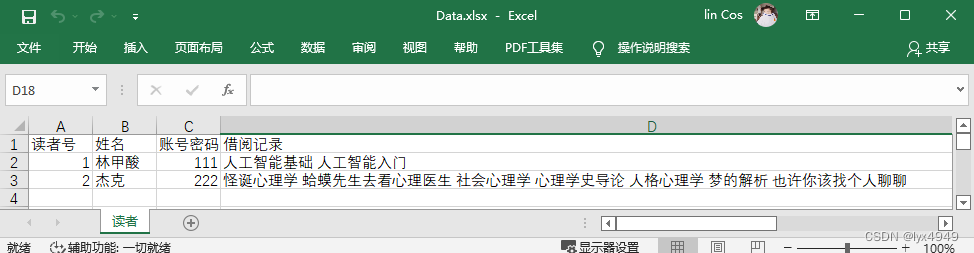
Functional remarks : This form can record the reader's account information ( Include reader number 、 Account and password ). When logging in, you need to call the reader information to log in ; When you borrow a Book , Register the borrowed books in the reader's borrowing record ; When returning the book , Delete the returned books from the readers' borrowing records ; When querying , The borrowing records of readers can be obtained from the form and displayed in the interface .Openpyxl For the operation of tables in the module, you can view the articles written before Openpyxl Table module operation
Two 、 development environment
Windows10+python3.5.5+Vs Code( development tool )
3、 ... and 、 The development of preparation
Data.xlsx form ( See the end of the article , Links to complete procedures and forms are attached )
Four 、 Implementation process
- Import library functions .
from tkinter import *
import openpyxl
import tkinter.messagebox as messagebox  # Message Popup
- Main interface programming
*( The main interface program is placed at the end , This is explained in advance )* The main interface design structure is simple , Just put one “ Reader login ” Button , Used when readers log in , Link functions Sign_in. This interface is based on main_frame frame , A new interface will appear later , Just hide this framework , Reset the new frame placement components . Then set all the books as a nested Dictionary book_sum, It is convenient to read every book in a unified way . Finally, the table operation .
# Main interface program
top = Tk()
top.title(" The library ")
top.geometry("800x500")
main_frame = Frame(top)  # The main interface framework
main_frame.place(relwidth=1,relheight=1)
# Layout main interface label , Button : Borrow books 、 Return books 、 Inquire about 、 Apply for reader card 、 Exit the system
Label(main_frame,text = " Convenience library ",font = (" In black ",50),width = 23,height = 3).place(x=0,y = 0)
Button(main_frame,text = " Reader login ",bg = "SkyBlue",command = Sign_in,font = (" In black ",15),width = 20,height = 3).place(x= 300,y = 350)
path = "C:/Users/cos(Lin)/Desktop/"  # Storage path , Modify... According to the actual situation
# All books
book_sum = {
    " literature ":{
    0:" I and Ditan ",1:" Suet ball ",2:" life ",3:" The History of Hulan River ",4:" In my hometown ",5:" Border town ",6:" Morning flowers and evening flowers ",7:" A Town Besieged "},
            " Computer ":{
    0:" Basis of artificial intelligence ",1:"Python Programming and robotics ",2:" Introduction to artificial intelligence ",3:" Application practice of artificial intelligence ",4:" Deep learning ",5:" computer network ",6:" machine learning ",7:" Wechat applet development "},
            " history ":{
    0:" Calendar 15 years ",1:" China's general history ",2:" Things of the Ming dynasty ",3:" Global History ",4:" Su Dongpo's biography ",5:" Daming under the microscope ",6:" The civil war lasted 300 years ",7:" Song Huizong "},
            " law ":{
    0:" On crime and penalty ",1:" The constitution of a big country ",2:" The general civil law ",3:" The civil code ",4:" Chinese law and Chinese society ",5:" Civil law property right ",6:" The laws of criminal law ",7:" Economic analysis of law "},
            " psychology ":{
    0:" Grotesque psychology ",1:" The mob ",2:" Mr. toad went to see a psychologist ",3:" Social psychology ",4:" Introduction to the history of psychology ",5:" Personality psychology ",6:" Dream analysis ",7:" Maybe you should talk to someone "},
            " Medical Science ":{
    0:" Infectious diseases ",1:" On typhoid and miscellaneous diseases ",2:" Basic nursing ",3:" Practical clinical pharmacology ",4:" Clinical guidelines _ Pain credits ",5:" New pharmacology ",6:" Electrocardiography ",7:" Analysis of classic cases in obstetrics and gynecology "}}
# Get the first sheet :“ Borrowing information ” The maximum number of rows in the table
sheets = openpyxl.load_workbook(path + "Data.xlsx")
sheet1 = sheets[sheets.sheetnames[0]]
max_row1 = sheet1.max_row  # Get the number of rows in the last row of the table's valid values , As a reader's number
top.mainloop()  # Message loop
The effect of the main interface is shown in the following figure :
- Design the login interface Sign_in function
The login interface first hides the main interface framework main_frame, Then lay out the new framework components second_frame Frame components , Place... In the frame “ Reader number ”、“ Account and password ” Text input box component of , For readers to input relevant information . Then place the confirm button , relation functions function ( service function ), The parameters passed include the framework component of the interface and the two information entered by the reader , For later retrieval .
# Login screen
def Sign_in():
    # Hide the first interface , Set the second interface
    main_frame.place_forget()
    second_frame = Frame(top)
    second_frame.place(relwidth=1,relheight=1)
    # Display in the interface “ Reader number ”“ password ” The input box of , Enter the reader's name
    Label(second_frame,text = " Login screen ",font = (" In black ",20),width = 20,height = 3).place(x=300, y=20)
    Label(second_frame,text = " Reader number :",font = (" In black ",18),width = 20,height = 3).place(x=100, y=100)
    Label(second_frame,text = " password :",font = (" In black ",18),width = 20,height = 3).place(x=100, y=175)
    num_entry = Entry(second_frame,show = None, font=(" In black ", 18), width=25)  # Name input box
    num_entry.place(x = 300,y = 135)
    password_entry = Entry(second_frame,show = '*', font=(" In black ", 18), width=25)  # Name input box
    password_entry.place(x = 300,y = 200)
    # Set up “ confirm ” Button , Jump to get_value() function : This function fills in the first table with the reader and the reader number
    Button(second_frame,text = " confirm ",bg = "SkyBlue",font = (" In black ",12),width = 15,height = 3,command = lambda:functions(second_frame,num_entry,password_entry)).place(x= 180,y = 300)
    Button(second_frame,text = " return ",bg = "SkyBlue",font = (" In black ",12),width = 15,height = 3,command = lambda:back_main(second_frame,main_frame)).place(x= 550,y = 300)
The effect of the login interface is shown in the following figure :
- Service function interface functions function
Click on the login screen “ confirm ” After button , Jump to the service function interface , It's a new interface , Also layout the new framework , Hide on frame ( I will not repeat it below ). First use in the program get() Method to obtain the entered reader number and reader password , Used to verify . When validating, you need to use the previously loaded tables , Traverse to get the contents of the first and second columns in the table , Identify the reader , Verify that the flag bit set has passed successfully pass_flag by 1, Out of the loop . Finally, the service function interface pops up according to the verification flag , This interface is used to place book borrowing 、 Return books 、 Inquire about 、 Exit the system 4 Function buttons , It also displays the name of the reader . If the reader makes a mistake , A pop-up window will pop up , Alarm prompt input error , And return to the login interface , Ask the reader to re-enter the account number 、 Account and password .
# Function interface : Borrow books 、 Return books 、 Inquire about 、 Exit system function
def functions(second_frame,num_entry,password_entry):
    num = num_entry.get()  #get() Method to get Entry Input box input content
    password = password_entry.get()
    print(num,password,type(num))
    # Hide the first interface , Set the second interface
    second_frame.place_forget()
    third_frame = Frame(top)
    third_frame.place(relwidth=1,relheight=1)
    pass_flag = 0  # Verify flag bit
    for i in range(2,max_row1+1):   # Traversal table
        # Verify that the reader number and password are correct . The reader number is in the first column , The password is in the third column
        if num == str(sheet1.cell(i,1).value) and password == str(sheet1.cell(i,3).value):
            pass_flag = 1  # Verify that the flag bit is 1
            break # Out of the loop
        else: # Password or account number error
            pass_flag = 0  # Verify that the flag bit is 0
    if pass_flag == 1:  # Judge the verification flag bit
        # Service function button
        print(" Verify success ")
        Label(third_frame,text = str(sheet1.cell(i,2).value) + ", Welcome ",font = (" In black ",40),width = 30,height = 3).place(x=10,y = 0)
        Button(third_frame,text = " Borrow books ",bg = "SkyBlue",command = lambda:Borrow_books(third_frame,num),font = (" In black ",12),width = 15,height = 3).place(x= 150,y = 200)
        Button(third_frame,text = " Return books ",bg = "SkyBlue",command = lambda:ruturn_books(third_frame,num),font = (" In black ",12),width = 15,height = 3).place(x= 550,y = 200)
        Button(third_frame,text = " Inquire about ",bg = "SkyBlue",command = lambda:Inquire(third_frame,num) ,font = (" In black ",12),width = 15,height = 3).place(x= 150,y = 350)
        Button(third_frame,text = " sign out ",bg = "SkyBlue",font = (" In black ",12),width = 15,height = 3,command=lambda:back_main(third_frame,main_frame)).place(x= 550,y = 350)
    else:
        messagebox.showinfo(' Warning !', ' Password or account number error !')  # A warning window will pop up
        back_main(third_frame,second_frame) # If the account and password are wrong, you will return to the login interface
After successful login , The service interface is shown in the figure :
- “ Borrow books ” Button Borrow_books function
Click... In the service interface “ Borrow books ” After button , Jump to Borrow_books function . This is a new interface , Put 6 There are different kinds of book buttons , Namely “ literature ”、“ Computer ”、“ history ”、“ law ”、“ psychology ”、“ Medical Science ”, Each button will enter the name of the corresponding type of book ·, Note the button command Parameter linked function BOOK function , The last parameter passed is the classification of books , It's down there classify, It's all the book dictionaries mentioned before book_sum Corresponding “ key “.
# Book borrowing button
def Borrow_books(third_frame,num):
    # Hide the first interface , Set the second interface
    third_frame.place_forget()
    fourth_frame = Frame(top)
    fourth_frame.place(relwidth=1,relheight=1)
    Label(fourth_frame,text = " Book classification ",font = (" In black ",40),width = 30,height = 3).place(x=10,y = 0)
    Button(fourth_frame,text = " literature ",bg = "white",command = lambda:BOOK(fourth_frame,num," literature "),font = (" In black ",12),width = 15,height = 3).place(x= 150,y = 200)
    Button(fourth_frame,text = " Computer ",bg = "white",command = lambda:BOOK(fourth_frame,num," Computer "),font = (" In black ",12),width = 15,height = 3).place(x= 350,y = 200)
    Button(fourth_frame,text = " history ",bg = "white",command = lambda:BOOK(fourth_frame,num," history "),font = (" In black ",12),width = 15,height = 3).place(x= 550,y = 200)
    Button(fourth_frame,text = " law ",bg = "white",command = lambda:BOOK(fourth_frame,num," law "),font = (" In black ",12),width = 15,height = 3).place(x= 150,y = 350)
    Button(fourth_frame,text = " psychology ",bg = "white",command = lambda:BOOK(fourth_frame,num," psychology "),font = (" In black ",12),width = 15,height = 3).place(x= 350,y = 350)
    Button(fourth_frame,text = " Medical Science ",bg = "white",command = lambda:BOOK(fourth_frame,num," Medical Science "),font = (" In black ",12),width = 15,height = 3).place(x= 550,y = 350)
The effect of the book borrowing interface is shown in the figure :
- Book selection interface
With “ Computer ” Take books of this kind for example , Press “ Computer ” After button , The interface will present the basic book name about computer books , By pressing the corresponding small square in front of the book , Then press the confirm button to confirm the selection of the book . This part is mainly about the design of the book list check box , You can use tkinter Medium Checkbutton Check box components , Parameters text Is the text next to the check box , That is, the name of the book , Get by nesting dictionaries book_sum[classify][i],variable Parameter setting or get the currently selected check box . Confirm button Association selection function , The reader number is passed num、 Selected books checkboxes、 Book category classify Equal parameter
# Choose fiction books : Design checkbox , Multiple books can be selected
def BOOK(fourth_frame,num,classify):
    print("classify:",classify)
    print(" Specify books ",book_sum[" law "])
    # Hide the first interface , Set the second interface
    fourth_frame.place_forget()
    fifth_frame = Frame(top)
    fifth_frame.place(relwidth=1,relheight=1)
    Label(fifth_frame,text=" Choose the books you want to borrow ",font = (" In black ",20),fg="blue",bg="lightyellow",width=60).grid()
    checkboxes = {
    }
    for i in range (8):
        checkboxes[i] = BooleanVar()
        Checkbutton(fifth_frame,text=book_sum[classify][i],variable=checkboxes[i],font = (" In black ",15),height = 1).grid(row = i+1,sticky = W)  # The list shows the books one by one
    Button(fifth_frame,text=" determine ",bg = "SkyBlue",font = (" In black ",12),width = 15,height = 3,command=lambda:selection(fifth_frame,num,checkboxes,classify)).place(x = 180, y =400)
    Button(fifth_frame,text=" Cancel ",bg = "SkyBlue",font = (" In black ",12),width = 15,height = 3,command=lambda:back_main(fifth_frame,main_frame)).place(x = 550, y =400)
Select the interface effect as shown in the figure 
- Confirm book selection selection function
Click... On the previous interface “ confirm ” Button , After confirming the selected books to borrow , Jump to selection function , Register books in a form . Definition list list1 To store the contents of the selected check box , utilize get() Whether the method acquisition check box is checked , Method checkboxes[i].get(), If the number is checked , So the result is Ture, Change the contents of the check box book_sum[classify][i] Add to list . In the pop-up “ Are you sure you want to borrow ” In the pop-up window , Click on “ confirm ”, The borrowing record will be saved in the form of string in the table , Such as “ The romance of The Three Kingdoms Water margin Journey to the west A dream of red mansions ”. Visible renderings .
# Confirm the selected book , Register books in the borrowing record
def selection(fifth_frame,num,checkboxes,classify):
    list1 = []  # Define an empty list , It is used to store books selected for borrowing
    for i in checkboxes:
        if checkboxes[i].get() == True:  # Determine which item is selected
            list1.append(book_sum[classify][i]) # Will be selected to form a list
    confirm = messagebox.askokcancel(' Tips !',' Are you sure you want to borrow ?')
    if confirm == True:  # A window for borrowing will pop up
        for i in range(2,max_row1+1):
            if sheet1.cell(i,1).value == int(num):
                print(sheet1.cell(i,2).value+" Borrow books ")
                # The reader will select several books in string form , Spaces are saved to the table at intervals , for example  “ The romance of The Three Kingdoms   Water margin   Journey to the west   A dream of red mansions ”, The method is as follows
                sheet1.cell(i,4).value = ' '.join(list1)   # Recombine the string elements in the borrowing book list into a new string , Space in the middle
                sheets.save(path + "Data.xlsx")   # Save table
        messagebox.showinfo(" Tips !",' Borrowing succeeded , Back to the main interface !')
        back_main(fifth_frame,main_frame)
The borrowing record saved in the form is shown in the figure :
- “ Return books ” Button ruturn_books function
Click... In the service interface “ Return books ” After button , Jump to ruturn_books function . In the new book return interface , Placed and returned “ The name of the book “ The text input box for ,” Confirm borrowing “ Button Links data_val function , This function operates on borrowing records in a table .” Return to the superior “ The button directly jumps to the main interface .
# Return button
def ruturn_books(third_frame,num):
    # Hide the old interface , Set new interface
    third_frame.place_forget()
    fourth_frame = Frame(top)
    fourth_frame.place(relwidth=1,relheight=1)
    Label(fourth_frame,text = " Book return service interface ",font = (" In black ",20),width = 20,height = 3).place(x=300, y=20)
    Label(fourth_frame,text = " The name of the book :",font = (" In black ",20),width = 20,height = 3).place(x=100, y=100)
    Label(fourth_frame,text = " remarks : Please enter the name of the returned book , For example, morning and evening , Enter only one book at a time ~",font = (" Regular script ",12),width = 100,height = 2).place(x=30, y=180)
    book_entry = Entry(fourth_frame, font=(" In black ", 20), width=20)  # Book input box
    book_entry.place(x = 350,y = 130)
    # Set up “ confirm ” Button , Jump to get_value() function : This function fills in the first table with the reader and the reader number
    Button(fourth_frame,text = " Confirm the return of ",bg = "SkyBlue",font = (" In black ",12),width = 15,height = 3,command = lambda:data_val(num,book_entry)).place(x= 180,y = 300)
    Button(fourth_frame,text = " Return to the superior ",bg = "SkyBlue",font = (" In black ",12),width = 15,height = 3,command = lambda:back_main(fourth_frame,main_frame)).place(x= 550,y = 300)
The effect of the book return interface is shown in the following figure :
- Modify the return data in the table data_val function
Click... In the book return interface “ Confirm the return of “ After button , Jump to data_val function . This function needs to delete the books to be returned from the borrowing record table . Therefore, the parameters passed by the function are the reader number and the name of the book to be returned by the reader , By reader number num Traversal table , Navigate to the reader's position in the table i, In the line , Get readers' borrowing records sheet1.cell(i,4).value ( The first i The first in the line 4 Column ), And then through split() Method specifies the delimiter to slice the string . Empty in parentheses , That is, the string is divided into a list by spaces , Convert to list , Traverse the list , Find the same title as the reader entered , And then use it remove() Method , Delete the record of the book in the list . After deleting , Using the same ’ '.join(book_list) Method , Assign the new list after deletion to the reader's borrowing record in the form of string , If the reader makes a mistake , A pop-up prompt appears .
# Modify the return data in the table
def data_val(num,book_entry):
    borrowing_records = '' # Define the reader's borrowing records
    confirm = messagebox.askokcancel(' Tips !',' Are you sure to return ?')
    if confirm == True:  # A window will pop up to prompt for borrowing and returning
        book = book_entry.get()  # Get the book name entered by the reader
        for i in range(2,max_row1+1):
            if num == str(sheet1.cell(i,1).value) :
                reader_flag = 1 # Marker bit
                break   # Locate the reader in the table i, Lines
            else:
                reader_flag = 0  # Marker bit
        if reader_flag == 1:
            borrowing_records = str(sheet1.cell(i,4).value)  # Get the borrowing records of the readers in the form
            book_list = borrowing_records.split()  #split() Method slices a string by specifying a delimiter . Empty in parentheses , That is, the string is divided into a list by spaces , Convert to list
            return_flag = 0
            for k in book_list:  # Traverse the list
                if k ==  str(book):  # Find the books that readers want to return
                    return_flag = 1  # Successfully find the mark of this book
                    print(" find ")
                    break # Find it and jump out
                else:
                    return_flag = 0  # Can't find , Or the input is wrong , Need tips
            if return_flag == 1:
                book_list.remove(k)  # Delete the record of this book in the list
                sheet1.cell(i,4).value = ' '.join(book_list)  # Reassign the deleted record to the reader's borrowing record
                print(str(book_list))
                sheets.save(path + "Data.xlsx")  # Remember to save the data after operating the table
                messagebox.showinfo(" Tips !",' Return the book successfully !')
            else:
                messagebox.showinfo(" Tips !",' Incorrect input , Please re-enter !')
Confirm that the effect of book return operation is as shown in the figure 
- Query button Inquire function
Click... In the service interface “ Inquire about ” After button , Jump to Inquire function . Parameters passed by num( Reader number ) Get readers in “Data.xlsx“ Borrowing records in the form 、 Reader's name , Then the reader's name and borrowing record are displayed on the interface . Be careful , Because the borrowing records are quite long , With the help of Label In the component wraplength Parameters , This parameter determines Label How many lines should the text be divided into , This option specifies the length of each line , The unit is the screen unit , You may need to debug it slowly , The height should also be set larger .
# Query button function
def Inquire(third_frame,num):
    # Hide the old interface , Set new interface
    third_frame.place_forget()
    fourth_frame = Frame(top)
    fourth_frame.place(relwidth=1,relheight=1)
    for i in range(2,max_row1+1):  # Traversal table , By entering the number ,# Locate the reader in the table i, Lines
        if num == str(sheet1.cell(i,1).value) :
            reader_flag = 1 # Marker bit
            break
        else:
            reader_flag = 0  # Marker bit
    if reader_flag == 1:
       name = sheet1.cell(i,2).value  # By the number of rows in the table , Get the name of this reader
       borrowing_records = sheet1.cell(i,4).value # By the number of rows in the table , Get the borrowing records of this reader
    Label(fourth_frame,text = " Query service interface ",font = (" In black ",25),width = 50,height = 2).place(x=0, y=0)
    Label(fourth_frame,text = " readers : " ,font = (" In black ",20),width = 15,height = 3).place(x=20, y=100)   #“ readers ” Text label
    Label(fourth_frame,text = name ,font = (" In black ",20),fg = 'red',width =40,height = 3).place(x=200, y=100)   # Reader's name
    Label(fourth_frame,text = " Borrow books : ",font = (" In black ",20),width = 15,height = 3).place(x=20, y=200)    #“ Borrow books ” Text label
    Label(fourth_frame,text =  borrowing_records, wraplength=350, font = (" In black ",20),fg = 'red',width = 40,height = 5).place(x=200, y=200)   #" Borrow books " Record ,wraplength This parameter makes the text reach 200 Wrap lines after pixels
    Button(fourth_frame,text = " Return to the superior ",bg = "SkyBlue",font = (" In black ",20),width = 20,height =2,command=lambda:back_main(fourth_frame,main_frame)).place(x= 300,y = 400)
The effect of the query interface is as follows :
- Return button function , from a The interface is transferred to main_frame Interface of frame component layout , It is relatively simple and not detailed .
# Return button function
def back_main(a,main_frame):
    a.place_forget()
    top.geometry("800x500")
    main_frame.place(relwidth=1,relheight= 1)
5、 ... and 、 remarks
① The first 1 Some main interface programs are placed behind all defined functions ,path The route needs to be modified according to the actual situation ,
② Links to complete programs and forms
link : Am I : Complete procedures and Data.xlsx form
Extraction code :lyx4
边栏推荐
- 第020讲:函数:内嵌函数和闭包 | 课后测试题及答案
- Lesson 018: function: flexible is powerful after class test questions and answers
- 如何在物联网低代码平台中使用数据字典功能?
- Redis核心技术与实战:学习总结目录
- Jericho uses DP and DM for IO key detection [chapter]
- ACM. Hj24 chorus ●●
- Lesson 033: exception handling: you can't always be right 2 | after class test questions and answers
- 二级造价工程师考前必备15个知识点来了!祝你旗开得胜!
- Leetcode daily question - 513 Find the value in the lower left corner of the tree
- 万字长文 | 使用 RBAC 限制对 Kubernetes 资源的访问
猜你喜欢

SPA项目开发之首页导航+左侧菜单

7-1 前序序列创建二叉树
![DACL output on Jerry's hardware, DAC output sound of left and right channels [chapter]](/img/8a/ce164a5538bd8edf10eba5e4e8abe6.png)
DACL output on Jerry's hardware, DAC output sound of left and right channels [chapter]

What is a data asset? How should data asset management be implemented?

RealNetworks vs. Microsoft: the battle in the early streaming media industry

KDD'22 | 阿里: 基于EE探索的精排CTR预估

Lesson 033: exception handling: you can't always be right 2 | after class test questions and answers

Implementation of breadth traversal adjacency matrix of 6-6 graph

Can the characteristics of different network structures be compared? Ant & meituan & NTU & Ali proposed a cross architecture self supervised video representation learning method CaCl, performance SOTA

万字长文 | 使用 RBAC 限制对 Kubernetes 资源的访问
随机推荐
Implementation of depth traversal adjacency table in Figure 6-7
LeetCode#20.有效的括号
Lesson 027: Set: in my world, you are the only after-school test question and answer
第018讲:函数:灵活即强大 | 课后测试题及答案
第030讲:文件系统:介绍一个高大上的东西 | 课后测试题及答案
第029讲:文件:一个任务 | 课后测试题及答案
Lesson 030: file system: introduce a big thing | after class test questions and answers
The necessary materials for the soft test have been released. All the soft test materials for the whole subject have been prepared for you!
How to use the data dictionary function in the low code platform of the Internet of things?
Leetcode daily question - 513 Find the value in the lower left corner of the tree
Redis core technology and practice: learning summary directory
Niuke's height in the 52nd monthly race B (thinking problem simulation problem)
自助图书馆系统-Tkinter界面和openpyxl表格综合设计案例
快速排序模板 & 注意事项
6月PMP考试准考证问题及注意事项,考生必读
自监督表征预训练之掩码图像建模:CAE 及其与 MAE、BEiT 的联系
杰理之开启四声道通话近端变调问题【篇】
6-3 二叉树的非递归遍历
第026讲:字典:当索引不好用时2 | 课后测试题及答案
Lesson 016: sequence | after class test questions and answers